
An infographic has to do two jobs at once: grab attention and explain something clearly. Typography sits at the heart of both. The headline font sets the mood, the body font carries the explanation, and the numbers font decides whether a statistic jumps off the page or gets lost. Choose badly and even well-researched data looks confusing; choose well and readers absorb the message in seconds.
This page brings together display fonts suited to infographics and a set of font pairing guides and examples. Rather than simply listing typefaces, we explain how to build a type hierarchy, which font styles work best for numbers and labels, and how to keep an infographic readable on phones, in print and in presentations.
Free Editable Excel Worksheet
Infographic Typography Planning Sheet
Plan clear font roles and readable type sizes for an infographic. This original Template Swift planning worksheet includes editable fields and an example row you can replace with your own details.
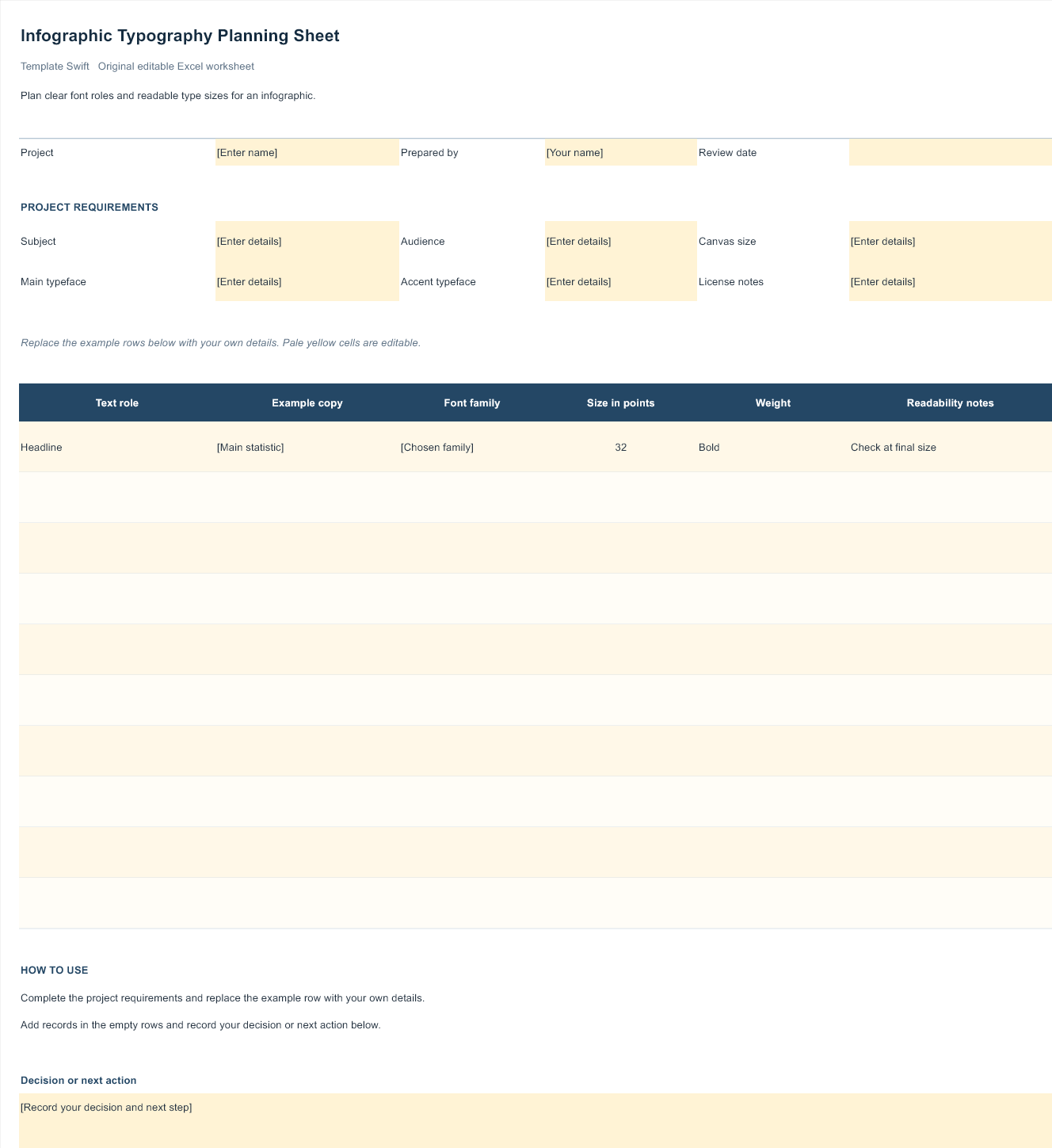
Download Infographic Typography Planning Sheet (.xlsx)
Open the file in Microsoft Excel or a compatible spreadsheet application. Replace the example row, complete the highlighted input fields, and save your own copy.
Three Levels of Type in Every Infographic
Most successful infographics use a clear hierarchy with three main levels of text, each with a distinct job.
The headline introduces the topic and draws people in. This is where a bold display font, a condensed sans-serif or a characterful slab serif can shine. It appears in only a few places, so it can be more expressive than the rest.
Key figures and section titles carry the main facts. Numbers such as percentages, totals and dates often appear very large, so the font needs clear, well-proportioned digits. Many designers use a heavy weight of the body font here, which keeps the design consistent.
Body text and labels explain the details, chart axes and sources. They need a plain, highly legible font that stays readable at small sizes. Sans-serif families with open letter shapes and several weights work especially well.
Limiting yourself to two font families, or even one family in several weights, keeps the design tidy. A third typeface should only be added for a specific reason, such as a hand-drawn accent for a playful topic.
Matching the Font to Your Topic
Fonts carry personality, and readers pick up on it instantly. Before choosing typefaces, think about the tone your subject needs. A financial report for investors calls for calm, trustworthy fonts with clean lines and plenty of white space. A health or safety infographic should feel clear and reassuring, so readability matters more than flair. A guide for children or a fun facts sheet can use rounded, playful fonts and bright colours.
Technology and science topics often suit geometric sans-serifs or monospaced accents that hint at code and precision. History and heritage subjects can borrow from classic serif or slab styles, sometimes with a vintage touch. Food, travel and lifestyle infographics frequently mix a friendly script or hand-lettered headline with a simple sans-serif body text.
If your infographic represents an organisation, start with its existing brand fonts. Consistency with the logo, website and other materials builds recognition, and you can still create contrast through weight, size and colour rather than introducing new typefaces.
When in doubt, print a draft or view it on a phone and ask someone unfamiliar with the project what kind of organisation they think produced it. If their answer does not match the tone you intended, adjust the fonts before refining anything else. Typography sets expectations faster than almost any other design choice.
Pairing Fonts That Work Together
Good font pairs combine contrast with harmony. Contrast makes each level of the hierarchy obvious; harmony keeps the design feeling like one piece. A few reliable approaches:
- Bold display plus neutral sans-serif. A heavy, characterful headline font paired with a clean sans-serif for everything else is the most common and safest combination.
- Slab serif plus sans-serif. Slab serifs have a sturdy, informative feel that suits data-heavy topics, and they sit comfortably alongside geometric or humanist sans-serifs.
- One superfamily. Some font families include matching serif and sans-serif versions, or a wide range of weights and widths. Using one family throughout guarantees consistency while still giving you plenty of variety.
- A small hand-drawn accent. For friendly or educational subjects, a handwritten font used sparingly for annotations or callouts adds warmth without hurting readability.
Avoid pairing two fonts that are similar but not identical, such as two different geometric sans-serifs. The difference looks like a mistake rather than a deliberate choice.
Making Numbers Stand Out
Numbers are often the stars of an infographic, so give them special attention. Choose a font whose digits are clear and evenly weighted; some decorative fonts have quirky numerals that look charming in a headline but become confusing in a chart. If you are showing columns of figures, a font with tabular (equal-width) numerals keeps everything neatly aligned.
Size and weight create emphasis. A large, bold “68%” with a short explanatory line underneath is far more memorable than the same fact buried in a sentence. Use colour sparingly to highlight the single most important number on each panel, and keep units, labels and sources in the smaller body font so they support rather than compete with the figure.
Above all, make sure the numbers are accurate and clearly sourced. An attractive infographic with incorrect or unsourced data does more harm than good, so cite your sources in a small line at the bottom of the design.
Readability Across Screens and Print
Infographics are often shared on social media and viewed on small phone screens, then printed for posters or handouts. Test your design at the smallest size it will realistically be seen. If body text needs zooming to read, increase the size or cut the amount of text. Very thin font weights look elegant on large screens but can vanish on phones and in low-quality prints.
Contrast is equally important. Light grey text on white or pale colours on bright backgrounds may look stylish but are hard to read, especially for people with low vision. Aim for strong contrast between text and background, and avoid placing small text over busy illustrations or photos.
For long, tall infographics, break the content into clear panels with consistent spacing, and repeat the same heading style for each section. Readers should be able to scroll and instantly see where one idea ends and the next begins.
Where Infographic Typography Matters Most
The same principles apply across many documents that blend visuals and data. Job seekers can use them to build a striking infographic resume, while businesses and charities use them in one-page fact sheets and in visual SEO and performance reports. Personal and family histories also benefit from clear type and simple visuals, as seen in our personal timeline templates. If you are choosing fonts for apps or mobile screens, our guide to free mobile fonts covers what works well on small displays.
Frequently Asked Questions
How many fonts should an infographic use?
Usually two: one for headlines and one for body text and labels. A single family with several weights also works well. Add a third font only for a specific accent.
Are serif or sans-serif fonts better for infographics?
Sans-serif fonts are most common for body text and labels because they stay clear at small sizes and on screens. Serif and slab serif fonts can work well for headlines and add personality.
Can I use free fonts for commercial infographics?
Use the worksheet to plan your project. Check the usage terms for any separate fonts, photographs, or artwork you choose to add.
What font size should infographic body text be?
It depends on the final display size, but test on a phone screen. If you need to zoom to read it, the text is too small or there is too much of it.
How do I make statistics more memorable?
Show one key number per panel in a large, bold font with a short label, use colour to highlight it, and keep supporting text brief and accurate with a clear source.
