
Get paid faster with professional invoice templates in Word and Excel. Each one includes your logo area, client details, itemized line items, tax and discount fields, payment terms and bank details. Excel versions calculate subtotals and totals automatically. Choose from minimalist, corporate, service and product invoice styles, then save as PDF and email to your client.
Match the invoice to the agreed work
Identify the supplier, customer, invoice number, issue date, project or order reference and currency. Describe the work in terms the customer can match to the agreement. A line such as services supplied is difficult to approve if the customer has several projects running. Include the period, deliverable or milestone covered, and keep expenses or other agreed charges distinguishable from the main service fee.
Use quantities and rates consistently
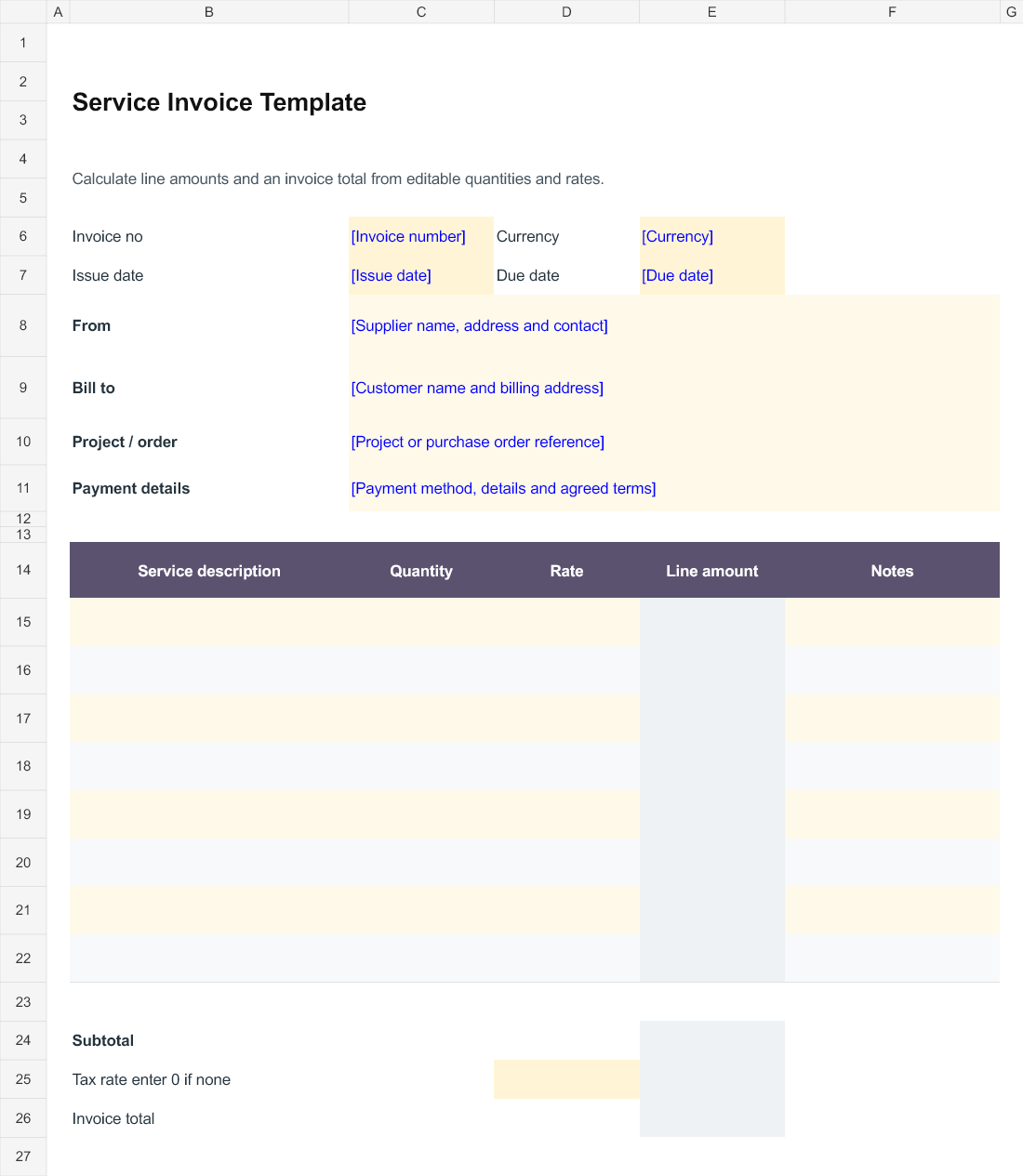
The Excel invoice multiplies the quantity by the rate for each completed line and adds the line amounts into a subtotal. Choose a quantity unit that matches the agreement: hours, sessions or items, for example. Do not put a whole project fee into an hourly rate field unless the quantity and description make that basis clear. Enter the applicable tax rate after checking the business requirements; enter zero only when no tax applies to that invoice. The total remains blank until the rate field is completed.
Use milestone billing when the contract uses stages
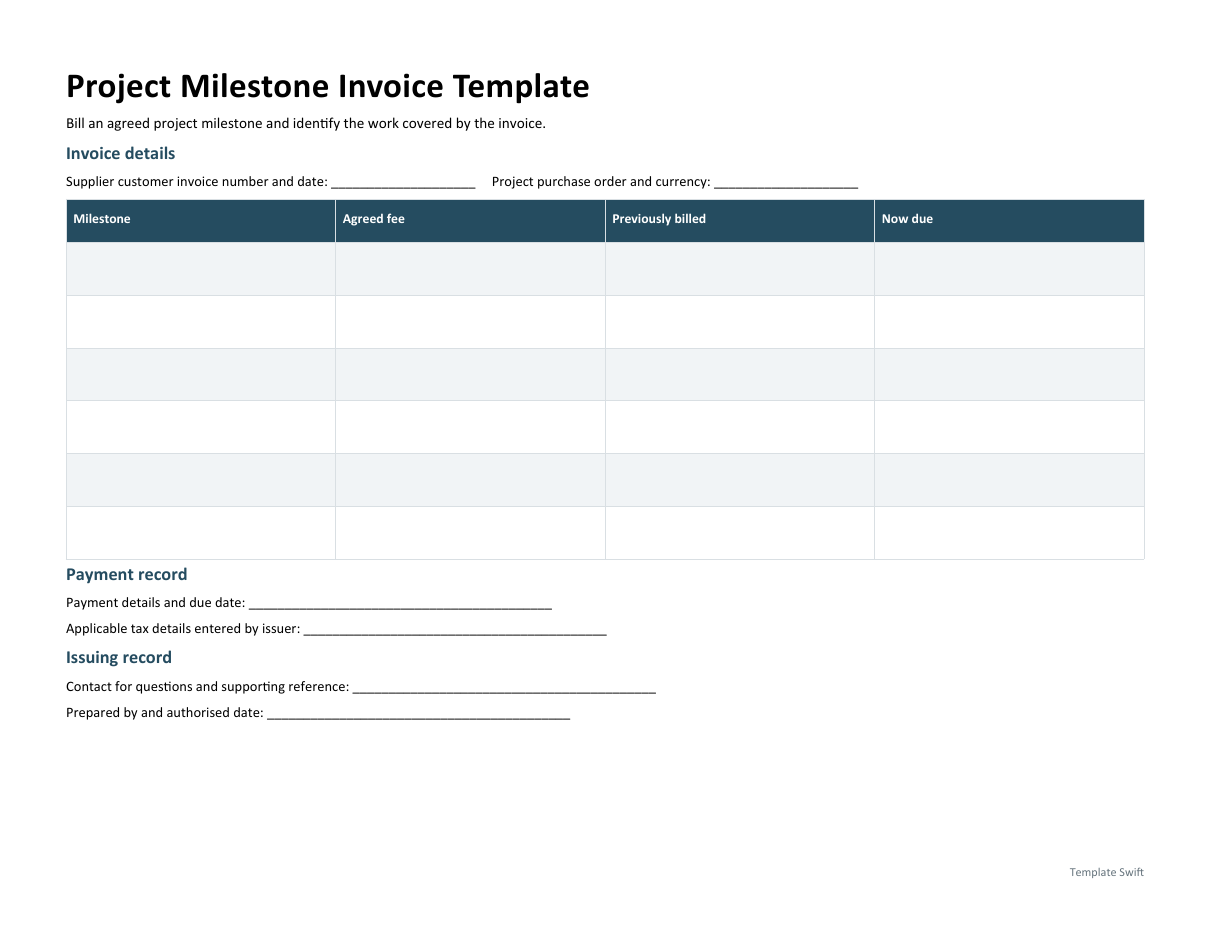
The Word milestone invoice separates the agreed milestone value, amounts previously billed and the amount being billed now. It is useful when a client approves work in stages or needs to match a payment to a specific deliverable. Keep the arithmetic consistent with the actual agreement and identify any supporting acceptance record. Do not treat a milestone invoice as evidence that payment has already arrived; record receipt of payment through the business normal accounting process.
Run a final approval check
Confirm the customer name, billing address, purchase order reference and the contact who should receive the invoice. Check the line calculations, currency, tax treatment, payment terms and the payment details supplied by the business. Remove unused example wording and empty lines that could confuse the customer. Retain the issued invoice and the version of the supporting work record used to prepare it, so later questions can be answered against the same information.
Working with the editable files
Service Invoice Template is an Excel workbook with editable entry areas. Enter the period or project reference first, then complete the rows that apply to your work. Keep figures in the stated units and currency. Where a calculated column is included, change the input cells rather than typing over the formula. Save a separate completed copy and check the print area if you add more rows.
Project Milestone Invoice Template is the Word option for this task. Start by completing supplier customer invoice number and date and project purchase order and currency. Replace the remaining bracketed prompts with information that applies to your situation, and remove unused fields before sharing a finished copy. Keep an untouched master so you can prepare the next document without carrying over another person's details.
Editable Word and Excel Resources
Service Invoice Template
Calculate line amounts and an invoice total from editable quantities and rates. Download the editable Excel file below.
Project Milestone Invoice Template
Bill an agreed project milestone and identify the work covered by the invoice. Download the editable Word file below.

You must be logged in to post a comment.