
PrestaShop is a free, open-source ecommerce platform used by small and mid-sized shops that want full control over their store without monthly platform fees. The software handles products, carts, checkout and orders, while the theme decides how all of that looks to shoppers. A well-chosen theme can make a modest catalogue feel polished and trustworthy; a poor one can make even great products hard to find and buy.
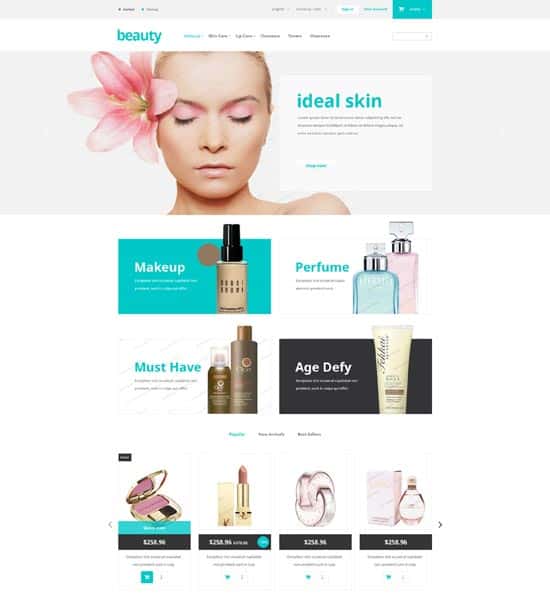
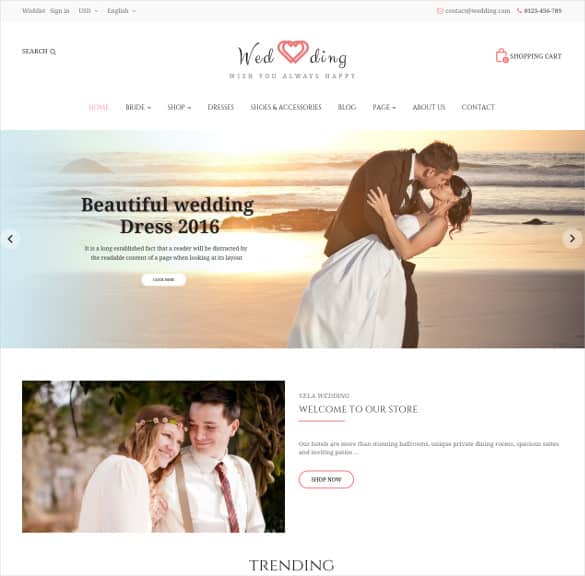
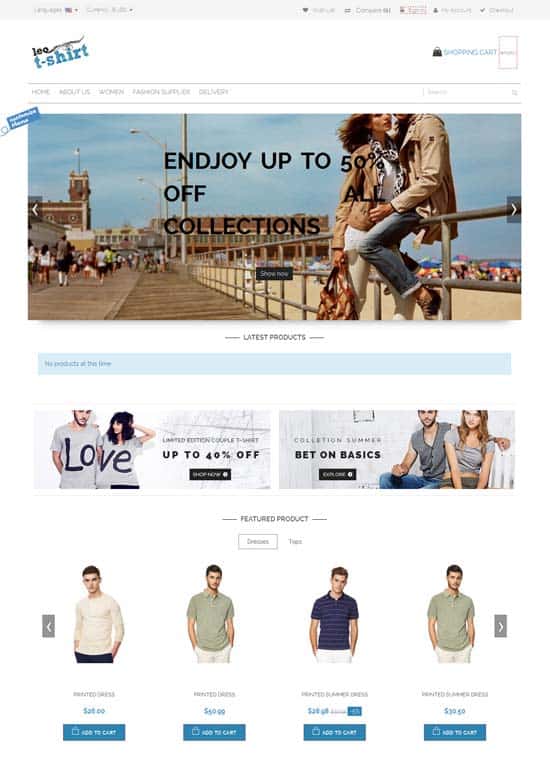
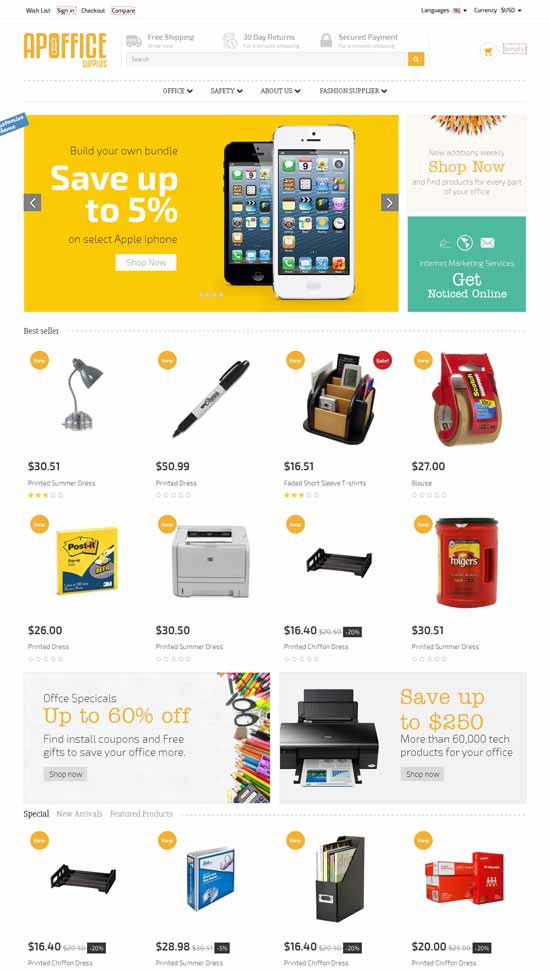
This page gathers PrestaShop themes for fashion, beauty, office supplies, clothing and general stores, along with a practical guide to choosing one. Because some of these designs date from older PrestaShop versions, we also explain how to check compatibility, what a theme does and does not control, and the store pages you should prepare before launch.
What a Store Theme Controls, and What It Doesn’t
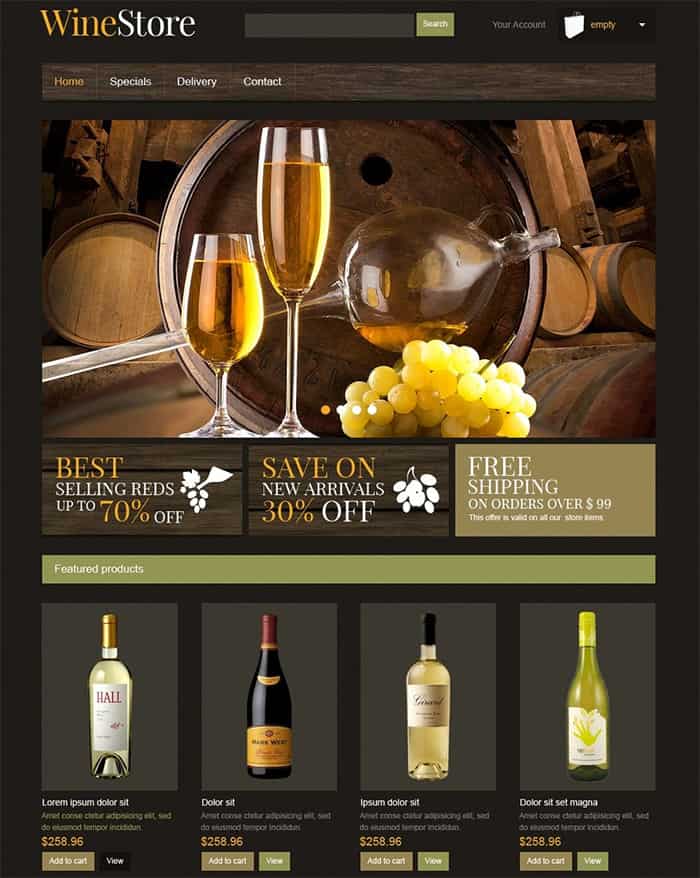
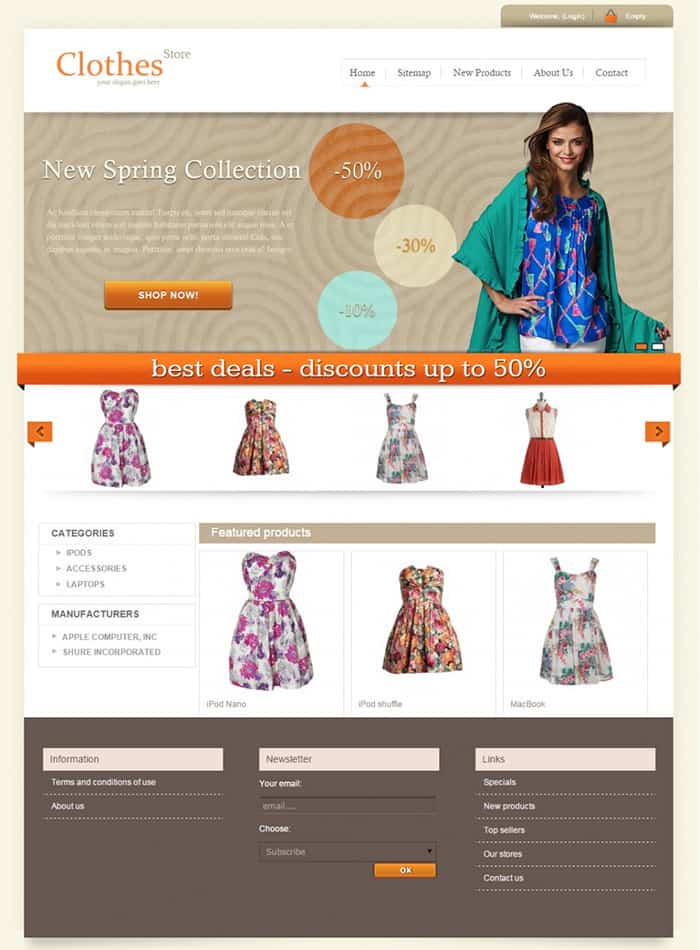
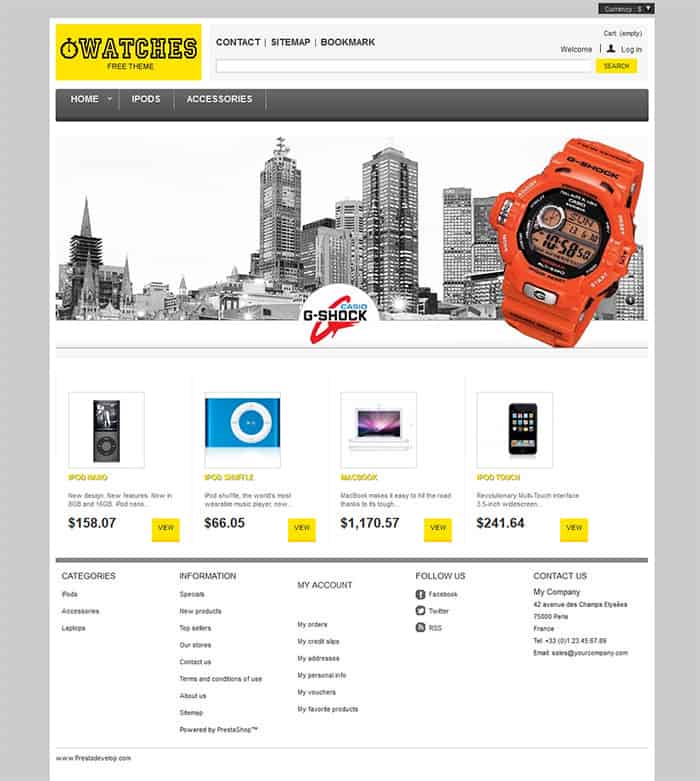
It helps to be clear about the theme’s role before choosing one. A theme controls the visual layer: the header and menu, home page sections, category and product page layouts, fonts, colours and how the store looks on phones. Some premium themes also bundle modules such as mega menus, product sliders, quick view pop-ups and wishlists.
A theme does not, by itself, handle payments, shipping rates, taxes or stock management. Those come from the platform’s core features and from payment and shipping modules, which you configure separately. Be cautious of any theme that claims to “support all payment systems”; what matters is whether reliable payment modules exist for the providers you plan to use in your country, and whether the theme displays their checkout steps cleanly.
Check before you install: These themes were made by third-party developers, and several were built for older PrestaShop versions. Themes are not always compatible across major versions, so confirm that a theme supports the version you run before buying or installing it. Four original links are no longer available and have been removed. Some of the remaining links are affiliate links to theme marketplaces, and not every theme shown is free. Always download from the developer or an official marketplace, keep backups, and test on a staging copy of your store first.
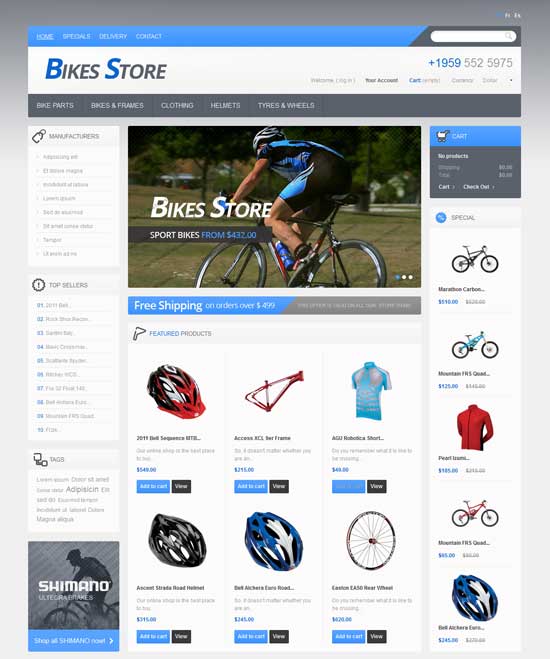
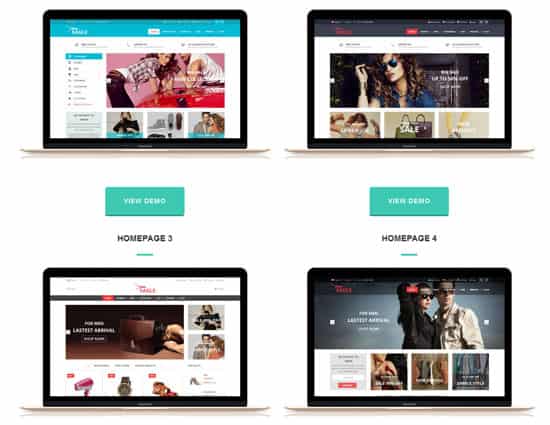
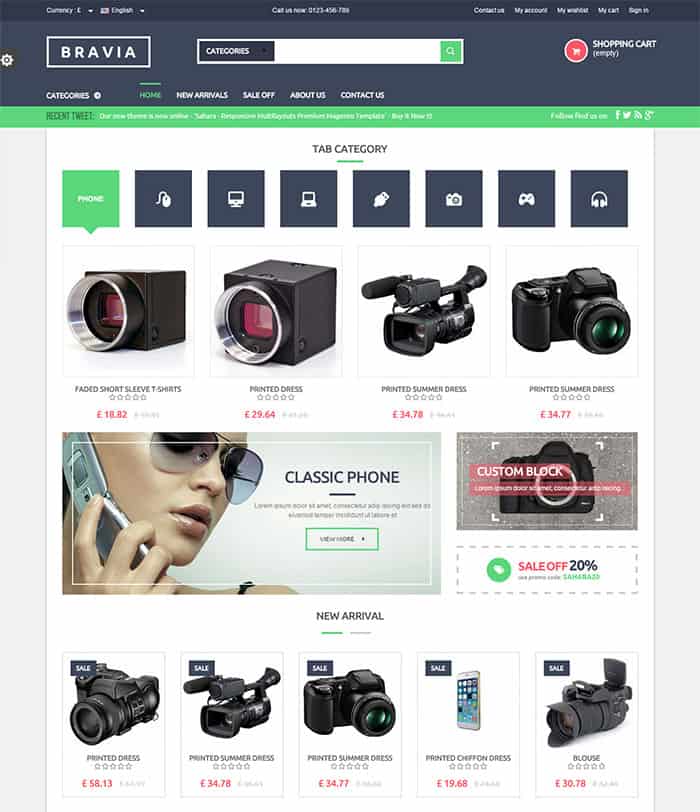
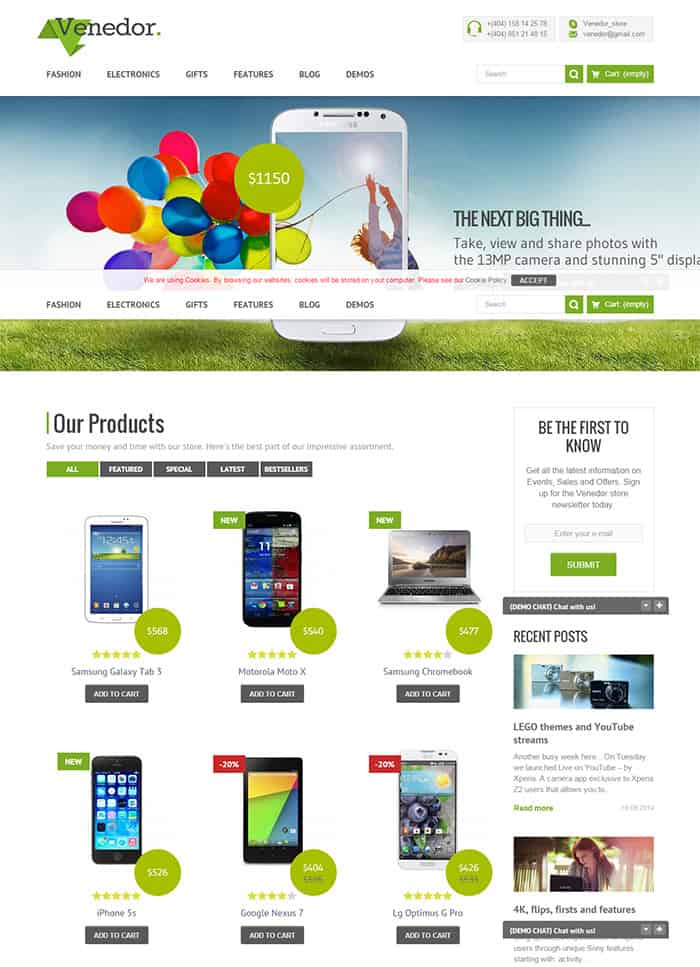
Online Store Themes to Explore

How to Choose the Right Theme for Your Shop
Start with your products and customers, not the theme gallery. A fashion boutique relies on large, beautiful photos and lookbook-style category pages. An office supplies or hardware store needs strong search, filters and clear specifications, because customers often know exactly what they want. A beauty or gift shop sits somewhere between, with an emphasis on attractive product images and easy upselling of related items.
Next, check the version. Confirm in the theme description which platform versions are supported and when the theme was last updated. A theme built for an older version may not install at all on a current store, or may work only partially. If a theme you love is outdated, use it as design inspiration and look for a maintained alternative with a similar layout.
Finally, test the shopping journey in the demo. Search for a product, filter a category, open a product page, add something to the cart and go as far as the checkout allows. Do this on your phone as well as your computer. If any step feels slow, confusing or cramped, your customers will feel the same.
Features That Help Stores Sell
- Clear navigation with sensible categories and a visible search bar.
- Fast product pages with zoomable images, prices, stock status and delivery information above the fold.
- Simple checkout with as few steps as possible and guest checkout if your business allows it.
- Trust signals such as returns information, secure payment notices and contact details in the footer.
- Mobile-friendly design with large buttons and a sticky “add to cart” on small screens.
- Accessibility, including readable contrast, keyboard navigation and descriptive image alt text.
Fancy effects such as animated sliders and pop-ups can look impressive in a demo but often slow pages down and distract shoppers. Keep them only if they clearly support sales.
Product Photos and Descriptions Make the Theme Shine
Theme demos look stunning partly because every product photo is shot on the same background, at the same size and in the same light. Your store will only look that good if your own images are consistent. Pick one style, such as a plain white background or a simple lifestyle setting, and use it for every product. Crop all images to the aspect ratio the theme expects, so category grids line up neatly instead of jumping around.
Descriptions matter just as much. Lead with the benefit to the customer, then cover the practical details: size, materials, compatibility, care instructions and what is included in the box. Short paragraphs and bullet points are easier to scan on a phone. Honest, specific descriptions reduce returns and customer service questions, and they help search engines understand what you sell.
If you also produce printed materials, such as a seasonal brochure or a trade price list, a matching product catalogue using the same photos and colours as your online store creates a consistent brand experience across channels.
Installing and Customising Safely
Always back up your store files and database before installing a new theme. Better still, set up a staging copy of your shop and install the theme there first. Check that your existing modules still work, that product images display correctly at the new sizes, and that order confirmation emails still look right. Only switch the live store once you are satisfied.
For customisation, use the theme’s settings panel and the platform’s built-in tools wherever possible. If you need code changes, use a child theme so updates do not overwrite your work. Keep a short log of what you changed and why; it will save hours when you or a developer revisit the store later.
Store Pages and Documents to Prepare
A good theme makes your store look professional, but customers also judge a shop by its policies and paperwork. Before launch, write a clear return policy and link it from the footer and product pages. Make sure your order confirmation emails include item details, totals, delivery estimates and contact information, and prepare a matching delivery note for physical shipments.
If you sell to businesses, professional invoice formats make accounting easier for both sides. And if you sell groceries or fresh goods, our grocery shopping website templates show layouts designed for large catalogues and quick repeat orders.
After Launch: Keep Improving
Launching your store with a new theme is the start, not the finish. Watch your analytics for pages where many visitors leave, such as a product page with a confusing layout or a checkout step that causes people to abandon their carts. Small fixes, like moving delivery information higher on the page or adding a size guide, often make a noticeable difference.
Keep the theme and modules updated, and review your store on new phones and browsers every few months. Ask a friend or customer to make a test purchase and tell you honestly where they hesitated. Their fresh eyes will spot issues you no longer notice because you know the store so well.
Frequently Asked Questions
Are all of these themes free?
No. Some are free, while others link to premium marketplaces, in some cases through affiliate links. Several original pages are no longer available. Check each source for price and licence terms.
Will an older theme work on the latest platform version?
Often not. Themes are usually built for specific major versions. Check the compatibility notes and test on a staging store before installing on your live shop.
Does the theme handle payments?
No. Payments are handled by payment modules connected to your chosen providers. The theme only controls how checkout pages look.
Can I change themes later without losing products?
Yes. Products, customers and orders are stored in the database, separate from the theme. You may need to reconfigure menus, banners and some module positions after switching.
What should I check in a theme demo?
Search, filtering, product pages, cart and checkout on both mobile and desktop. Also look at loading speed and how the theme handles long product names and many categories.
