

You’ve finished the cover design, the title looks great, and the colors finally feel right. Now you need to show it to the world, and a flat rectangle on a white background just doesn’t do it justice. PSD book mockups solve that problem by placing your artwork onto a realistic book, complete with spine, page edges, shadows and lighting, so readers, publishers and clients can picture the finished product in their hands.
Specify artwork and viewpoints for a book cover mockup presentation. This guide includes one free original editable Excel worksheet, with a preview and a direct download below.
Free Editable Excel Worksheet
Book Mockup Presentation Brief
Specify artwork and viewpoints for a book cover mockup presentation. This original Template Swift planning worksheet includes editable fields and an example row you can replace with your own details.

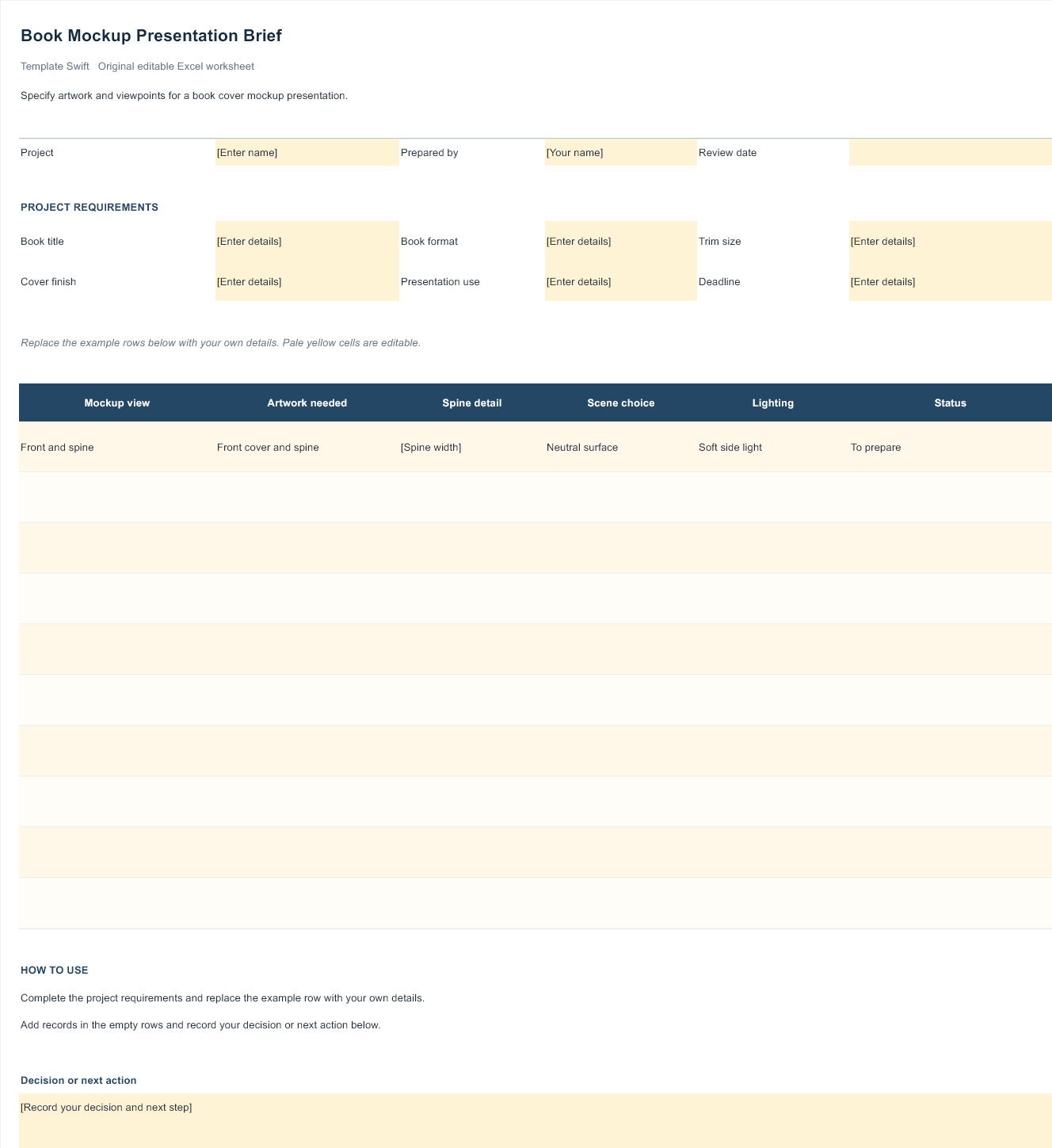
Download Book Mockup Presentation Brief (.xlsx)
Open the file in Microsoft Excel or a compatible spreadsheet application. Replace the example row, complete the highlighted input fields, and save your own copy.
How a Book Mockup Works
A mockup is a layered Photoshop file built around a “smart object.” The smart object is a placeholder for your design. You double-click it, paste your cover artwork into the window that opens, save, and the mockup automatically wraps your design onto the 3D-looking book, adding the right perspective, highlights and shadows. You don’t need advanced 3D skills; the hard work was done by the mockup’s creator.
Most book mockups include separate smart objects for the front cover, the spine and sometimes the back cover or inside pages. Many also have adjustable background colors, shadow layers you can switch on or off, and lighting overlays that you can soften or strengthen.
Picking the Right Mockup Style
The best mockup matches the book you’re actually producing. A glossy hardcover mockup for a slim paperback will look off, and readers notice.
| Mockup type | Best for | Look for |
|---|---|---|
| Hardcover, standing | Novels, coffee-table books, premium editions | Visible spine, realistic cloth or gloss texture |
| Softcover / paperback | Self-published fiction, guides, workbooks | Slight cover curl, believable page edges |
| Square book | Photo books, children’s books, portfolios | Correct square proportions, clean shadows |
| Open book spread | Interior layouts, magazines, cookbooks | Gentle page curve near the gutter |
| eBook / device scene | Digital downloads, lead magnets, online courses | Tablet or 3D “box” style presentation |
Questions to ask before you download
- What size is your book? Check that the smart object’s proportions match your trim size, such as 6 x 9 inches, so the cover isn’t stretched.
- Do you need the spine? If your spine has a title, choose a mockup that shows it clearly.
- Where will the image be used? Website banners, Instagram posts and print ads each favor different angles and crop shapes.
- What does the license say? Free mockups often allow personal and commercial use but forbid redistributing the file itself. Some require credit.
Placing Your Cover: A Step-by-Step Walkthrough
- Prepare a flat cover file. Export your front cover as a high-resolution JPG or PNG at the same proportions as your book. Prepare the spine and back cover separately if the mockup shows them.
- Open the mockup in Photoshop. Look in the Layers panel for a layer labeled something like “Your Design Here” or “Cover” with a small smart object icon.
- Double-click the smart object thumbnail. A new document opens. This is where your artwork goes.
- Paste and fit your design. Place your cover, scale it to fill the canvas exactly, then hide or delete the sample artwork.
- Save and close the smart object. Go back to the main file and your cover now appears on the book with perspective and shadows applied.
- Adjust the scene. Change the background color, tweak shadow opacity, or add your own props such as a coffee cup or a plant to match your brand.
- Export for each channel. Save a large version for your website, a square crop for social media, and a smaller, compressed copy for email.
Tip: If text on the cover looks blurry in the mockup, your smart object image is probably smaller than the placeholder. Re-export your cover at a higher resolution and paste it again.
Small Details That Make a Mockup Look Real
- Match the finish. A matte cover shouldn’t have a strong glossy highlight. Lower the lighting layer’s opacity if your printed book will be matte.
- Keep the spine readable. Check that spine text runs in the right direction for your market. In the US, spine text usually reads top to bottom.
- Use a believable background. Soft neutral surfaces like wood, linen or plain paper keep attention on the book.
- Don’t over-edit shadows. Removing all shadows makes a book look pasted on. A gentle, soft shadow grounds it.
- Stay consistent. If you’re promoting a series, use the same mockup scene for every title so they look like a set.
Where to Use Your Finished Book Mockups
Once you have a polished mockup, put it to work everywhere your readers are:
- Book launch announcements on your website, newsletter and social profiles.
- Pre-order and sales pages, where a realistic 3D book often feels more tangible than a flat cover.
- Author press kits and pitches sent to bookstores, libraries, podcasts and reviewers.
- Printed flyers and event posters for readings, signings and book fairs.
- Portfolios for designers who want to show cover work in context.
Mini case: a first-time self-publisher
Daniel wrote a family recipe collection and printed a small run for relatives and his local farmers market. He laid out the pages with a cookbook template, then used a hardcover mockup for his market banner and an open-spread mockup to show a sample recipe on social media. Matching printable bookmarks with the cover art became a small free gift with each copy. The whole visual package came together over a weekend, without hiring a photographer.
Mockups vs. real product photos
Mockups are fast, cheap and perfectly consistent, which makes them ideal before a book is printed or when you need many images in different formats. Real photos, on the other hand, show the actual paper, color and size, and they feel personal. Many authors use both: mockups for pre-launch announcements and online store images, then real photos of printed copies once the first boxes arrive. If your mockup and the final printed book differ noticeably, for example in trim size or finish, update your store images so buyers know exactly what they’re ordering. Honest images lead to fewer returns and better reviews.
More templates for book projects
If you’re still working on the book itself, a few other resources can help. Writers telling their own story might start with an autobiography template to outline chapters. Designers producing periodicals can use our magazine templates for interior layouts.
Common Mistakes With Book Mockups
- Using a hardcover mockup for a paperback, or vice versa, which can mislead buyers about what they’ll receive.
- Stretching a 6 x 9 cover into a square smart object.
- Forgetting to update the spine after changing the title or author name.
- Exporting huge, uncompressed images that slow down your website.
- Ignoring the license terms on free mockups, especially for paid ads or merchandise.
Editable Word and Excel Resources
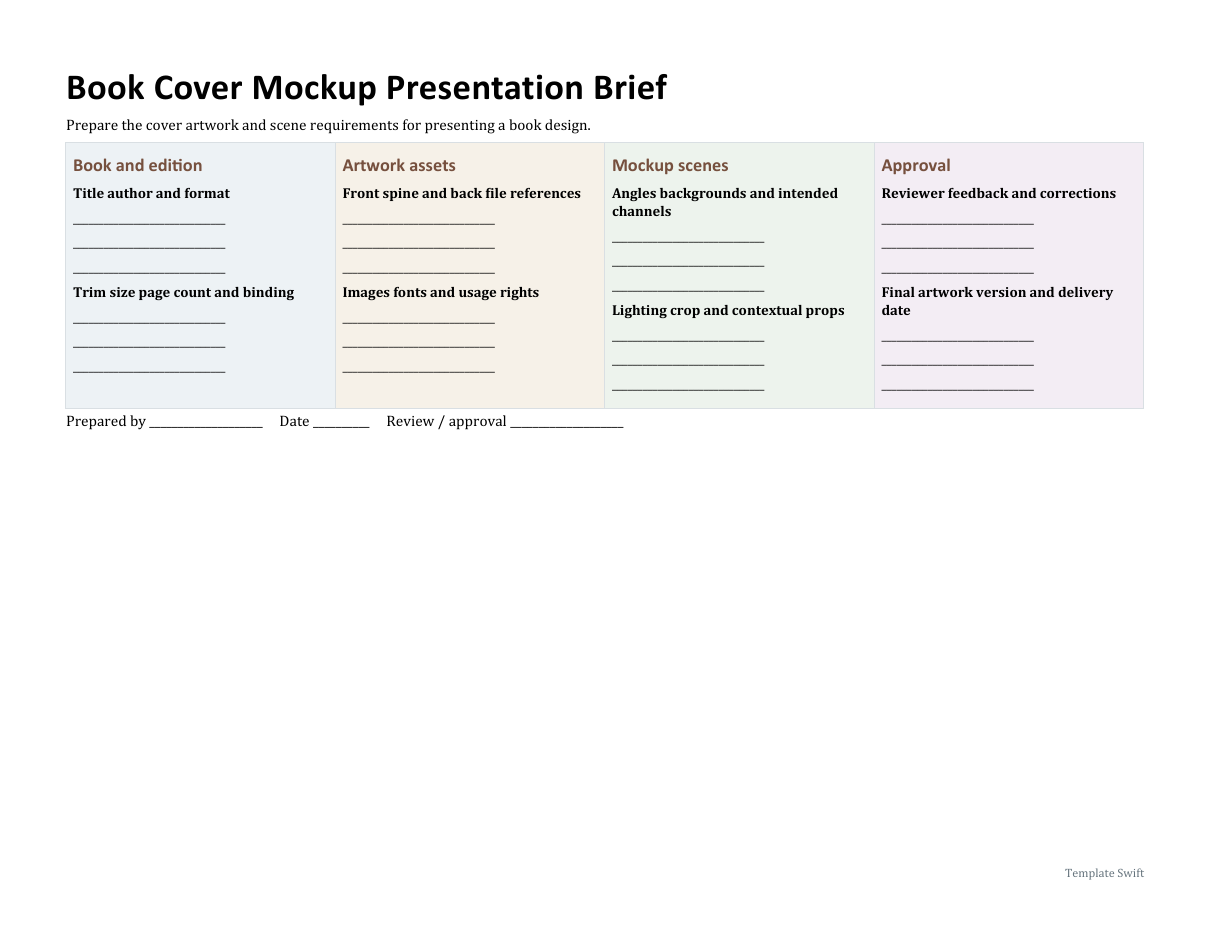
Book Cover Mockup Presentation Brief
Prepare the cover artwork and scene requirements for presenting a book design. Download the editable Word file below.
Frequently Asked Questions
Do I need Photoshop to use these book mockups?
PSD files work best in Photoshop because of smart objects. Some other editors, such as Photopea or Affinity Photo, can open many PSD mockups, but features vary.
What resolution should my cover be?
Match or exceed the size of the smart object placeholder. A cover exported at print resolution, around 300 pixels per inch, usually looks sharp.
Are book mockups only for printed books?
No. eBook and device mockups are popular for digital downloads, online courses and free guides used as email sign-up incentives.

