

It’s Sunday night and the café manager is still at the counter with a coffee-stained notepad, trying to remember who asked for Thursday off, who can’t work mornings, and whether anyone is covering Saturday’s brunch rush. Sound familiar? A good employee schedule template turns that weekly puzzle into a ten-minute job: names down the side, days across the top, and a clear picture of who works when.
We built 8 free employee schedule templates in Excel for the situations managers deal with most: a weekly schedule that totals hours automatically, a color-coded monthly schedule, a restaurant schedule, a 24/7 rotating shift plan, an employee availability form, a retail store schedule, an on-call rotation and an hour-by-hour daily schedule. All of them open in Excel, Google Sheets or LibreOffice, print on a single page and use simple [placeholder] text you can type over.
What Every Work Schedule Should Show
Whatever format you choose, a schedule people can actually rely on answers the same handful of questions:
- Who is working, listed by name and role
- When each shift starts and ends, including breaks if your workplace tracks them
- Where they’re working, if you have more than one location or department
- How many hours each person is scheduled for the week, so you can watch overtime and part-time limits
- Coverage, meaning how many people are on at any given time
- Who to contact for swaps, sick calls and questions
Pick the Right Scheduling Pattern
| Pattern | How it works | Best for | Template to use |
|---|---|---|---|
| Fixed shifts | Same days and hours every week | Offices, small shops with steady hours | Weekly schedule |
| Flexible / variable | Shifts change week to week based on demand and availability | Restaurants, retail, hospitality | Restaurant or retail schedule plus availability form |
| Rotating 24/7 | Teams cycle through day, night and off days | Healthcare, security, factories | 2-2-3 rotating schedule |
| On-call | One person is reachable outside normal hours for a set period | IT, maintenance, property management | On-call schedule |
| Hourly coverage | Staff assigned hour by hour across a single day | Events, busy shops, front desks | Daily hourly schedule |
Free Employee Schedule Templates for Excel
Each template is a ready-to-use .xlsx file. Click Download, open it, replace the placeholders and save a copy for each week or month.
1. Weekly Employee Schedule With Hour Totals
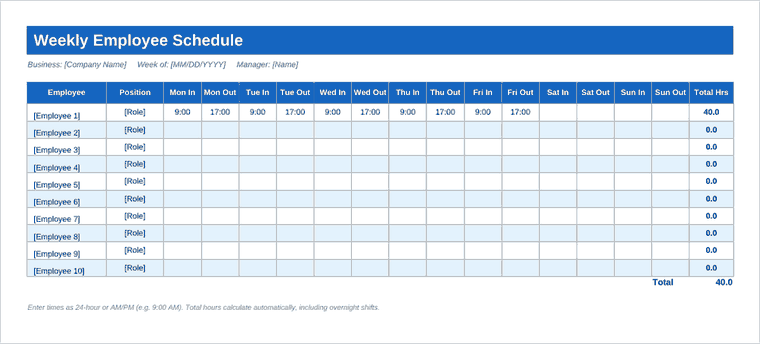
The classic layout: one row per employee, an in and out time for every day, and a Total Hrs column that adds everything up automatically, even for overnight shifts. Perfect for small businesses that need to keep an eye on payroll hours.

2. Monthly Staff Schedule (Shift Codes)
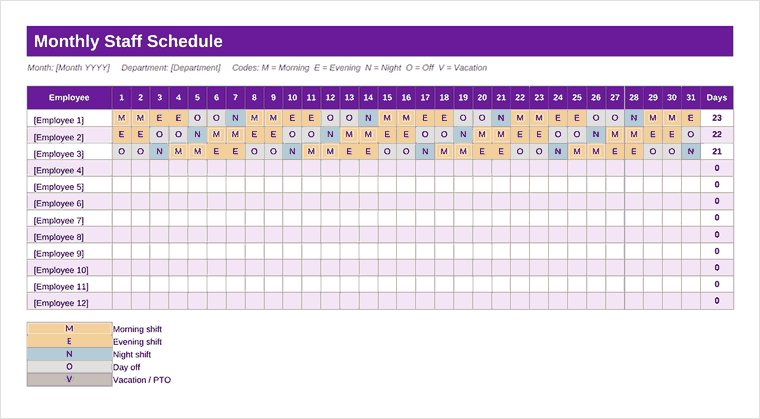
See a whole month at a glance. Type a simple code (M for morning, E for evening, N for night, O for off, V for vacation) and the cells color themselves. A Days column counts how many shifts each person is working.

3. Restaurant Staff Schedule
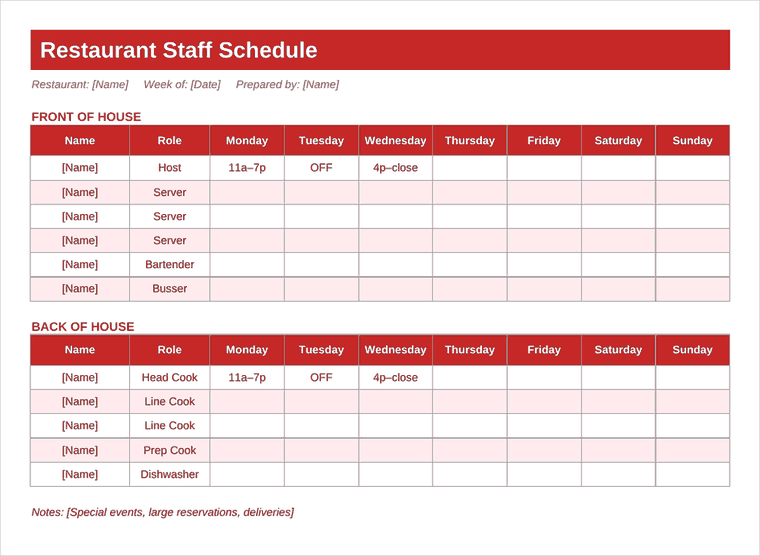
Split into front of house (host, servers, bartender, busser) and back of house (cooks, prep, dishwasher) so managers can make sure both the floor and the kitchen are covered every service.

4. 24/7 Rotating Shift Schedule (2-2-3)
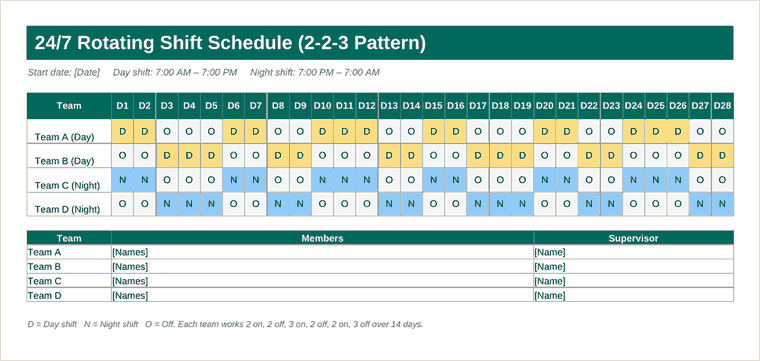
A 28-day plan for four teams covering 12-hour day and night shifts around the clock. It’s popular with security, healthcare, manufacturing and call centers, and includes a team roster with supervisors.

5. Employee Availability Form
Hand this to new hires or send it out each season. Employees mark the days and hours they can work, their maximum weekly hours, preferred shifts and dates they’re unavailable, then sign it.


6. Retail Store Employee Schedule
Built around store hours with roles like manager, key holder, cashier and stock. A bottom row counts how many people are on shift each day so you never leave the store short on a busy Saturday.

7. On-Call Schedule
A quarter-by-quarter rotation for IT, maintenance and support teams, with primary and backup contacts, phone numbers and a note about swaps. Print it or share it so everyone knows who to call after hours.

8. Daily Employee Schedule (Hourly)
Plan a single day hour by hour. Mark an X under each hour someone works and the sheet shows how many people you have every hour, which makes lunch rushes and shift handovers much easier to cover.

Build Next Week’s Schedule in 20 Minutes
- Collect availability first. Keep a signed availability form on file for every employee and ask them to update it when things change. It saves endless back-and-forth.
- Check approved time off. Block out vacations and appointments before you assign a single shift. Our time off request forms make this paper trail easy.
- Start with your busiest times. Fill peak hours and key roles (a manager or key holder on every shift, a cook on every service) before anything else.
- Fill the gaps. Spread the remaining shifts fairly, keeping an eye on each person’s weekly total.
- Check the totals. Look at the hours and coverage rows. Is anyone over their limit? Is any day short-staffed?
- Publish it early. Share the schedule as far ahead as you can, ideally at least a week, by printing it, posting a photo in your team chat or sharing the Google Sheets link.
Keeping the Schedule Fair (and Your Team Happy)
Most scheduling complaints aren’t about hours. They’re about fairness. Rotate the less popular shifts, such as closing, Sunday mornings and holidays, instead of handing them to the same people every week. Give employees a simple, written way to request swaps, and make the manager the person who approves them so coverage stays balanced. If someone asks for consistent days because of school or childcare, try to honor it; that kind of flexibility builds loyalty fast.
It also helps to keep last month’s schedules. Looking back makes it easy to answer “Why am I always closing?” with facts rather than memory, and it shows your own patterns, like whether you’re regularly overstaffing Tuesdays.
A quick note on the rules: overtime, break requirements, minimum rest between shifts, predictive scheduling and rules for minors differ by state and country. Use these templates to plan, and check your local labor laws or an HR professional before finalizing schedules.
Common Scheduling Mistakes to Avoid
- Scheduling from memory. Always check the availability forms and the time-off list before you start, not after.
- Ignoring the busy hours. Equal staffing every hour usually means too many people at 3 p.m. and too few at noon. The daily hourly template shows exactly where the gaps are.
- Back-to-back close and open shifts. Sending someone home at midnight and expecting them back at 6 a.m. leads to tired staff and mistakes.
- Last-minute changes without telling anyone. If you edit the schedule after it’s posted, let the affected people know directly.
- No backup plan. Keep a short list of employees who are happy to pick up extra shifts when someone calls in sick.
Tips for Using the Excel Templates
Save a master copy before you start filling it in, then use “Save As” with the week’s date for each new schedule. Type times consistently: in the weekly template, enter times like 9:00 AM or 17:00 so the hour totals calculate correctly. Use the shift codes in the monthly template exactly as listed (M, E, N, O, V) so the colors and counts work. And print in landscape; the templates are already set to fit one page.
Scheduling connects to plenty of other everyday HR paperwork. Track arrivals and departures with a sign-in sheet, keep everyone’s phone numbers in a staff contact list, and use a shift handover report so nothing is lost between shifts. When someone’s hours or role change permanently, record it on an employee status change form, and ask staff to summarize their day with a daily work report.
Frequently Asked Questions
How do I make an employee schedule in Excel?
List employees in the first column and days across the top, then enter shift times in each cell. Our templates already have this structure plus formulas for total hours and daily staff counts, so you only need to type names and times.
How far in advance should I post the schedule?
At least one week is a good habit, and two weeks is even better. Some cities and states require advance notice for certain industries, so check the rules where you operate.
What is a 2-2-3 rotating schedule?
It’s a 14-day cycle where a team works 2 days, has 2 off, works 3, has 2 off, works 2 and has 3 off, usually on 12-hour shifts. Four teams can cover a workplace 24 hours a day, 7 days a week.
Can I use these templates in Google Sheets?
Yes. Upload the .xlsx file to Google Drive and open it with Google Sheets. Formulas, colors and print settings carry over, and you can share a view-only link with your team.
Are these employee schedule templates free?
Yes. All eight templates are free to download, edit and use for your business, school, nonprofit or team.
How do I handle shift swaps?
Ask employees to agree on the swap between themselves, then get a manager’s approval and update the schedule so the posted copy is always the correct one.

