

Designing a messaging feature looks simple until you start: chat bubbles, timestamps, read receipts, typing indicators, voice notes, attachments, group lists and settings all need to fit on a small screen and feel instantly familiar. Good chat app templates and UI kits give you a head start, with ready-made screens you can study, customize and present to clients or teammates.
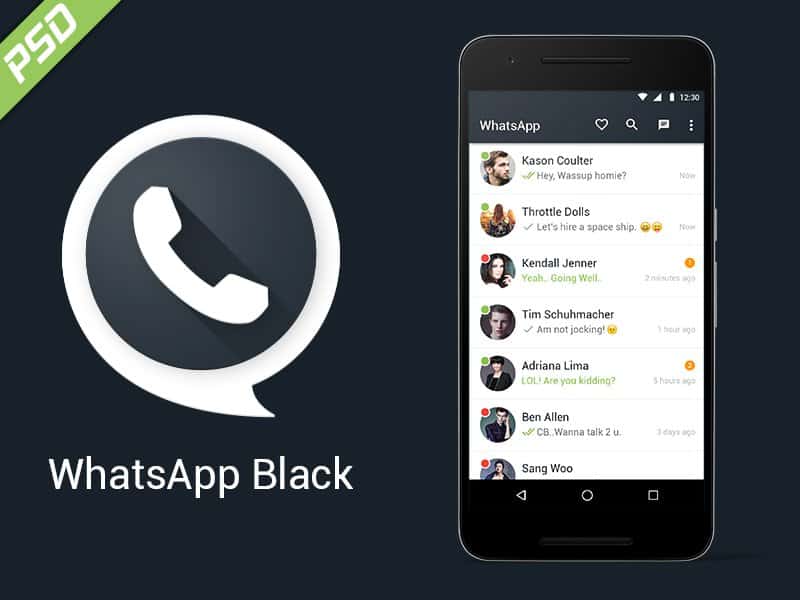
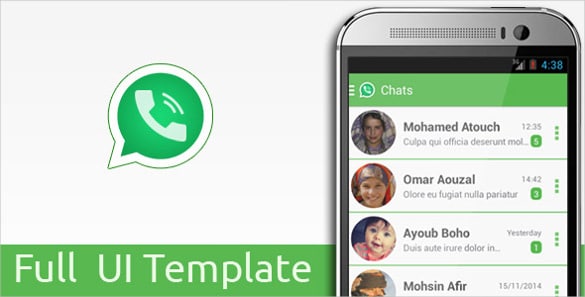
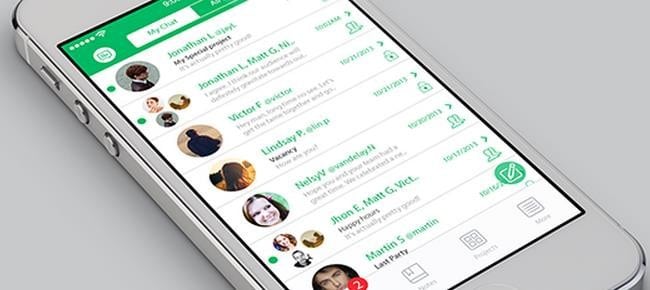
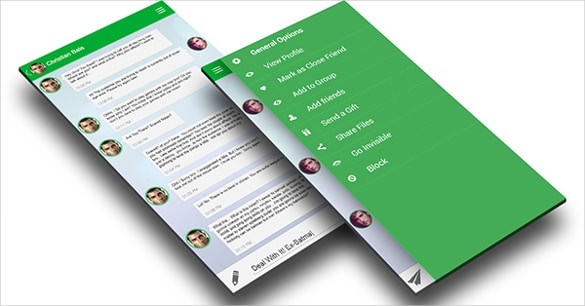
This page gathers seven chat and messenger designs: PSD mockups, an iOS chat app template, UI concept shots and material-style redesigns. Some are downloadable files, some are design concepts meant purely for inspiration, and one original listing is no longer online. Below, you’ll find what makes a chat interface work, how to use these resources responsibly, and a step-by-step approach to designing your own messaging screens.
Where Chat UI Templates Come in Handy
- App designers sketching a new messaging product or adding in-app chat to an existing one.
- Developers who want a working layout to build on instead of starting from a blank storyboard.
- Customer support teams planning a live-chat widget for a website or app.
- Students and bootcamp learners practicing UI design with a familiar, well-understood pattern.
- Marketers and presenters who need realistic chat screenshots for slides, tutorials or ads, using clearly fictional conversations.
Anatomy of a Good Chat Screen
Most successful messaging apps share the same core building blocks. When you evaluate a template, check how well it handles each one:
| Element | What to look for |
|---|---|
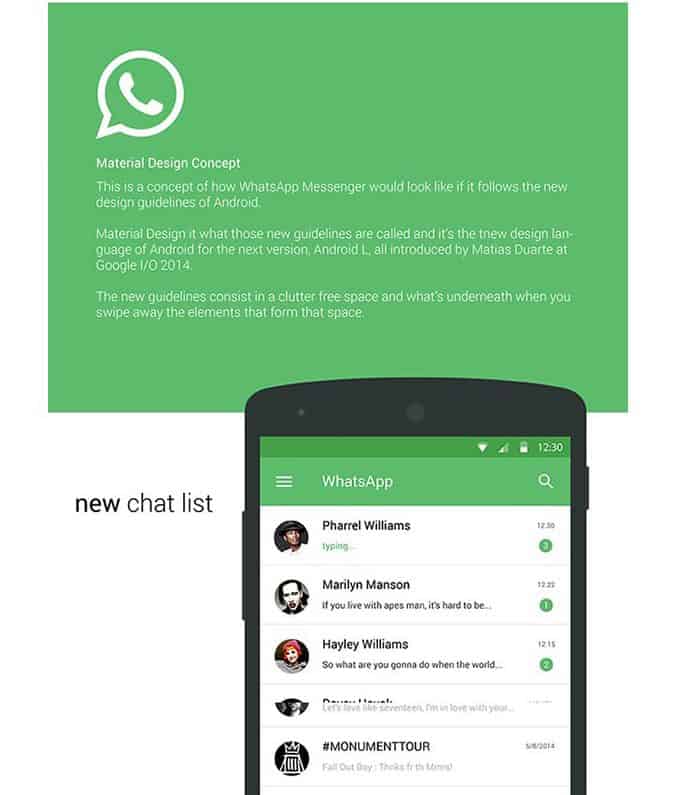
| Conversation list | Avatar, name, last message preview, time and unread count, all readable at a glance. |
| Message bubbles | Clear difference between sent and received messages, comfortable padding, sensible max width. |
| Status indicators | Sent, delivered and read states that are subtle but understandable. |
| Composer bar | Text field, send button, and easy access to attachments, camera and voice notes. |
| Media and files | Image previews, file cards and audio players that fit the bubble style. |
| Group chats | Sender names or colors so people can follow who said what. |
| Empty and error states | Friendly screens for “no messages yet” and “couldn’t send.” |
Pay special attention to the keyboard. On phones, the composer must stay visible above the on-screen keyboard, and the newest message should never hide behind it.
Use Inspiration Without Copying a Brand
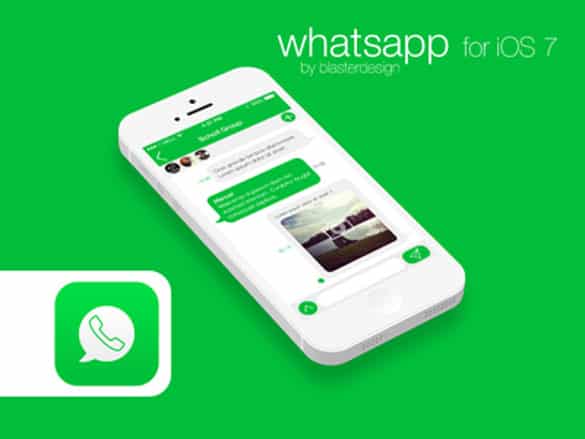
Several designs below are fan concepts or redesign studies of well-known messaging apps. They’re great for learning layout and interaction ideas, but if you’re building your own product, create your own visual identity. Don’t reuse another company’s logo, name, icon or signature colors in a way that could confuse users about who made your app, and check the license of any template before using it commercially. App stores also review apps that imitate existing brands, so originality protects you as well as your users.
About these resources: The buttons link to the original pages on design communities, template marketplaces and freebie sites. Some offer downloadable PSD or code files, others are concept images only, one links to an unrelated craft listing, and one original page has been removed. Treat every item as inspiration first, and download only from sources whose terms fit your project.
7 Chat App Templates, Mockups and UI Concepts









Designing Your Own Messaging Screens, Step by Step
- Define the use case. Is this a social messenger, a customer support chat, a marketplace buyer-seller chat or a team tool? Each needs different features.
- List the essential screens. Usually: sign-in, conversation list, chat thread, contact or profile, new message and settings.
- Sketch the chat thread first. It’s the screen people use most. Get bubble spacing, timestamps and the composer right before polishing anything else.
- Pick a template as a reference, not a costume. Borrow structure and spacing ideas, then apply your own colors, icons and typography.
- Design every state. Loading, empty, sending, failed, offline, blocked contact and long messages with links or emojis.
- Prototype and test. Click through a prototype on a real phone with a few people. Watch where they hesitate.
- Hand off clearly. Document sizes, colors and behaviors so developers can build exactly what you designed.
Mini case: a support chat for a small online shop
A small online store wanted a chat window so customers could ask about orders. The designer studied a few messenger templates for bubble layouts, then simplified everything: no voice notes, no group chats, just text, images and an “order number” quick-reply button. Clear business hours and an “we usually reply within an hour” message set expectations. The result felt familiar to customers without imitating any particular app.
Features to Consider Beyond the Basics
Once the core chat works, you can decide which extras genuinely help your users. Each one adds design and development work, so pick deliberately:
- Reactions: quick emoji responses reduce “ok” and “thanks” messages in busy chats.
- Replies and quotes: let people answer a specific earlier message, which matters a lot in group conversations.
- Search: finding an address or a file from last month is one of the most requested features in any messenger.
- Pinned messages: keep rules, links or key details at the top of a group.
- Message editing and deleting: decide whether edits are visible to others and how long deletion is allowed.
- Notifications settings: mute, mentions-only and quiet hours keep users from turning notifications off entirely.
A good rule of thumb is to launch with fewer features done well, then add more based on what real users ask for. Templates often show every feature imaginable; your product doesn’t need all of them on day one, and a simpler interface is usually easier to learn, test and maintain.
Accessibility and Privacy Checklist for Chat Interfaces
- Readable text sizes that respect the user’s system font settings.
- Color contrast strong enough for both sent and received bubbles, in light and dark mode.
- Screen reader labels for icons like send, attach, camera and microphone.
- Clear timestamps that don’t rely on color alone to show unread messages.
- Visible privacy controls for blocking, reporting, muting and deleting conversations.
- Honest data notices. If your app stores messages, tell users how and for how long. Privacy and data-protection rules vary by country and state, so check the requirements that apply to your users with a qualified professional.
If you’re documenting these requirements for a team, a simple checklist template keeps design reviews consistent from one release to the next.
Related Templates for App and Web Projects
A messaging feature rarely lives alone. If your project also involves an older mobile web app, our roundup of jQuery mobile templates explains when legacy frameworks still make sense. Building a community instead of private chat? These forum templates cover threaded discussions. Freelancers designing chat features for clients should agree on deliverables first with a clear scope of work, and support teams can pair live chat with a structured service request form for issues that need follow-up.
Frequently Asked Questions
Can I use these templates to build a commercial app?
Only if the license allows it. Some items are free for commercial use, some are paid, and concept shots on design communities usually aren’t downloadable files at all. Check each source.
Is it okay to make my app look like a famous messenger?
Borrowing general patterns like chat bubbles is normal, but copying another company’s logo, name, icons or distinctive branding can confuse users and create legal problems. Develop your own visual identity.
What tools open these files?
PSD mockups open in Photoshop and some other editors. The iOS template is a code project for Apple’s development tools. Concept images are for visual reference only.
How many screens does a basic chat app need?
Around six: sign-in, conversation list, chat thread, profile, new chat and settings. Add more only as features require.
Can I use realistic chat mockups in marketing?
Yes, with clearly fictional names and messages. Never present invented conversations as real customer testimonials or real people’s messages.

