

A flat design file on a white screen rarely does justice to a printed piece. Clients struggle to picture how a letterhead, flyer or CV will feel once it is on real paper, sitting on a desk or folded in someone’s hand. Paper mockups bridge that gap. They are layered scenes, usually supplied as PSD files, in which you drop your artwork into a placeholder and it appears on a realistic sheet complete with shadows, creases and lighting.
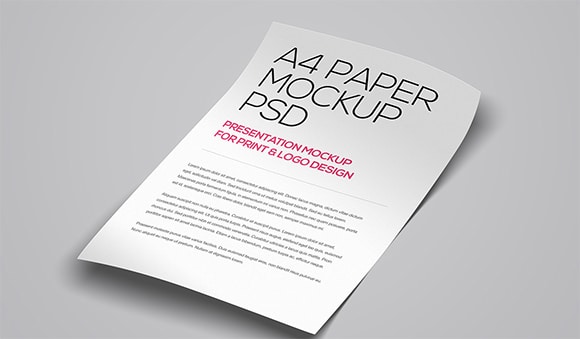
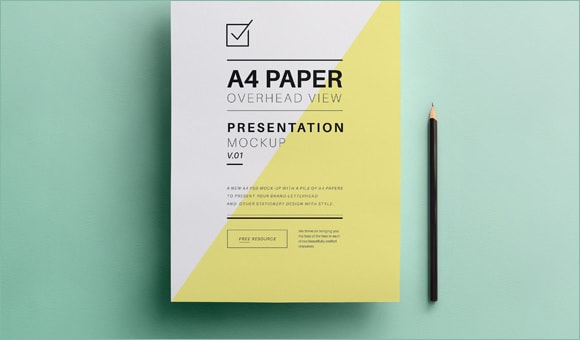
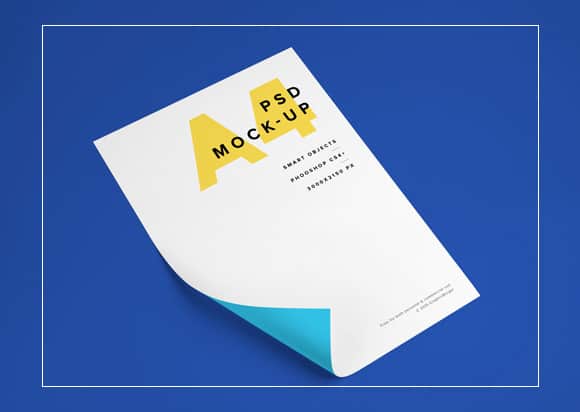
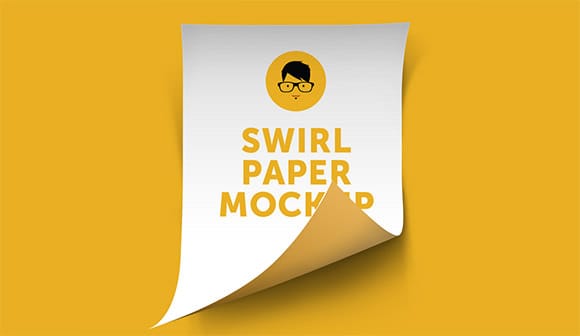
This collection gathers paper mockups in several presentations: flat overhead shots, floating sheets, folded pages and curled or swirled paper. Further down you will find guidance on choosing the right scene, preparing your artwork so it fits cleanly, and presenting the result to a client in a way that helps them say yes.
How Paper Mockups Work
Most paper mockups are built around smart objects, which are containers inside the file that hold your design. You open the smart object, paste or place your artwork, save it, and the main scene updates automatically with your design warped to match the angle and lighting of the paper. Shadow and highlight layers sit above the artwork, so folds and texture appear on top of your design rather than underneath it.
Because of this structure, the same mockup can be reused for many projects. A designer might show a letterhead one week and a one-page menu the next using exactly the same scene. Many files also include separate layers for the background, so you can change the desk colour or swap the surface for something that matches your brand. If you do not own the software the files were made for, some free and browser-based editors can open layered PSD files, though smart object support varies, so test one file before committing to a workflow.
Choosing the Right Type of Scene
| Mockup style | Best for | Things to watch |
|---|---|---|
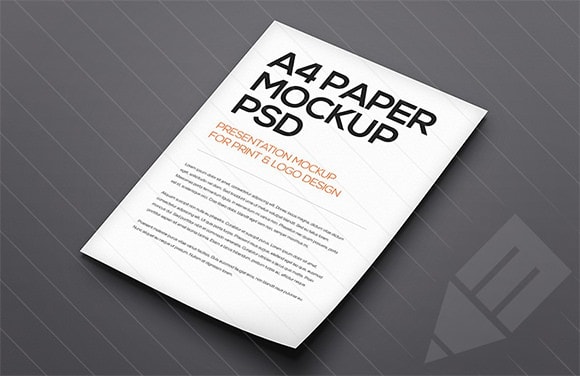
| Flat overhead | Letterheads, CVs, invoices, reports | Text is easy to read, but the scene can feel plain without props |
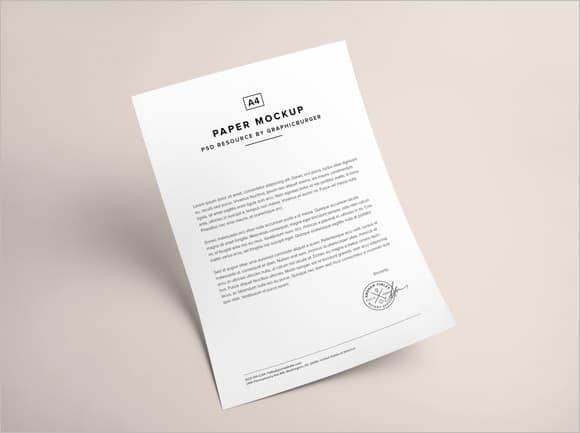
| Floating sheets | Portfolio pieces, multi-page documents | Soft shadows look modern; keep the background simple |
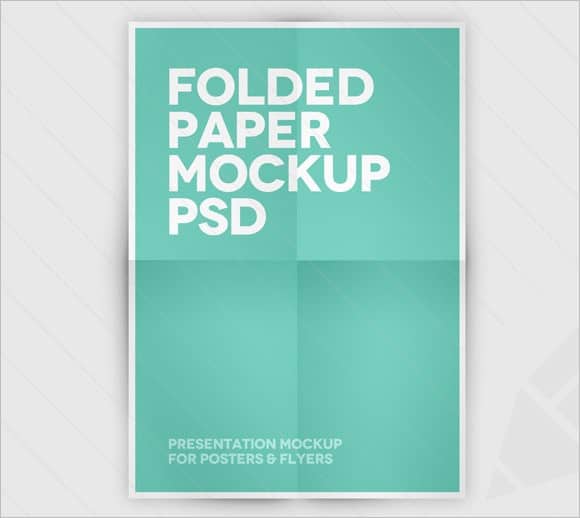
| Folded paper | Flyers, menus, handouts | Folds can cut across important text, so check your layout |
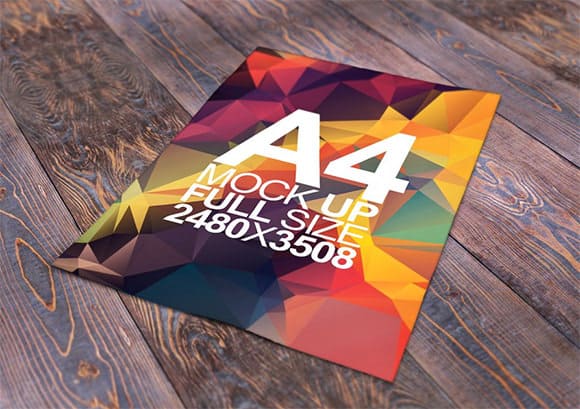
| Curled or swirled | Posters, creative or artistic work | Strong distortion makes fine print hard to read |
As a rule, choose the simplest scene that still feels realistic. The mockup should flatter the design, not compete with it.
About these resources: Every mockup here was created by an outside designer or resource site. Two of the original download pages are no longer available, so those links have been removed. Some of the remaining sites may ask you to sign up or offer premium versions alongside free ones. Check each licence before using a mockup in commercial client work, and note that some free mockups require a credit to the creator.
Paper Mockup Scenes to Download










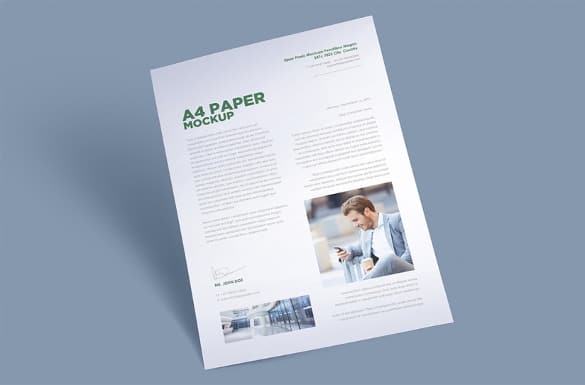

Preparing Your Artwork for a Mockup
The smoothest results come from matching your artwork to the smart object before you place it. Open the placeholder first and note its pixel dimensions and orientation. If it is set up as portrait A4 at a particular size, export your design at exactly those proportions. Placing a US letter design into an A4 placeholder, or the other way round, will either leave white gaps or stretch your layout slightly, and sharp-eyed clients will notice.
Export at a high resolution so that text stays crisp when the scene is viewed full screen. Flatten any effects that might not carry over, and convert unusual fonts to outlines or a raster image if you are sharing the mockup file with someone who may not have them installed. Leave a little breathing room near the edges of the page, because the shadows and curls in many scenes darken the margins.
Once the design is in place, look at the scene at 100 percent zoom. Check that thin lines have not disappeared, that small text is still legible, and that colours have not shifted under the lighting layers. If the scene makes your colours look dull, try lowering the opacity of the shadow layer slightly rather than brightening the artwork itself.
What to Show in a Paper Mockup
Paper mockups suit almost any single-sheet design. Stationery is the obvious choice: a business letterhead looks far more convincing on a realistic sheet than as a flat file. Job seekers and designers presenting an infographic resume can use the same approach to make a CV stand out in a portfolio. One-page fact sheets, price lists, certificates and menus all benefit too.
For multi-page work such as a company profile, floating or stacked sheet scenes let you show a cover and a couple of inside pages together. If you are presenting a bound publication instead, a dedicated book mockup will look more natural than loose sheets.
Presenting Mockups to Clients
A mockup is a sales tool as much as a design tool, so think about how you present it. Show one hero image first, ideally a scene that looks like a real office or studio, then follow with a closer, flatter view where the client can read the details. Two or three images are usually enough; a long gallery of near-identical angles can make it harder for the client to focus on the design decisions you need from them.
Be clear that the scene is a visualisation rather than a photograph of a printed proof. Paper stock, ink and finish all change how a design looks in real life, and a mockup cannot replace a physical proof for colour-critical work. Many designers send a mockup to get approval on layout and direction, then order a printed sample before the full run.
It also helps to keep the surroundings neutral. Props such as pens, plants and coffee cups add atmosphere, but bright or cluttered props pull attention away from the page. If the client has strong brand colours, a background tone that echoes them can make the whole presentation feel tailored without overwhelming the design.
Building a Reusable Mockup Library
If you present printed work regularly, it is worth organising a small set of go-to scenes. Keep one flat overhead mockup for documents, one angled or floating scene for portfolio images, and one folded scene for flyers. Rename the layers clearly, note the placeholder size in the file name, and store the licence or credit details alongside each file so you are never unsure whether a scene can be used for client work. For more single-sheet options, our collection of A4 paper mockups adds further angles and lighting styles.
Common Mockup Mistakes
The first mistake is choosing a scene for its looks rather than its fit. A dramatic curled sheet may be beautiful, but if the client needs to read a dense invoice layout, the distortion will work against you. Start from what the viewer needs to see, then choose the scene.
The second is ignoring scale. A business card design placed on a full A4 sheet, or a poster squeezed onto letter-sized paper, gives a false impression of how the finished piece will read. Keep the mockup’s paper size matched to the real output size wherever possible.
The third is forgetting about the back. If your design is double-sided, show both sides, either with two scenes or with a mockup that includes a flipped sheet. Clients are often surprised by the reverse of a document if they only approved the front.
Finally, avoid heavy-handed edits to the lighting. Brightening the whole scene to make colours pop can flatten the shadows that make the paper look real. Small adjustments to individual layers usually give a more natural result than a single global change.
Frequently Asked Questions
What is a paper mockup?
It is a layered image of a realistic sheet of paper with a placeholder for your design. When you add your artwork, it appears printed on the sheet with shadows, folds and lighting, giving a preview of the finished piece.
What software do I need?
Most paper mockups are PSD files that rely on smart objects, so a raster editor with smart object support works best. Some free editors can open these files, but features vary, so test a single scene first.
Can I use these mockups for client work?
Many free mockups allow commercial use, but some require attribution or restrict redistribution. Read the licence on each source page before using a scene in paid projects.
Why does my design look blurry in the mockup?
Usually the artwork was placed at a lower resolution than the smart object, or it was scaled up after placing. Export the design at the placeholder’s exact pixel size and replace the contents again.
Does a mockup show accurate print colours?
No. Screens and lighting layers change how colours appear. Use mockups for layout approval, and request a printed proof when colour accuracy matters.

