

A hiring manager skims a stack of résumés in the time it takes to finish a cup of coffee, and an infographic resume template is one of the few tools that can make yours the one they pause on. Instead of a wall of bullet points, you show your skills, experience, and career path with clean visuals: rating bars, timelines, icons, and a little color. Done well, it reads faster than a standard résumé and says something about your eye for design before the reader even gets to your job history.
This page gathers six free infographic resume templates in Microsoft Word format. They cover creative roles like graphic, web, and UI/UX design, but also more traditional jobs such as admin support and sales management, which shows that visual résumés aren’t only for designers anymore. Below you’ll find advice on when a visual résumé helps and when it can hurt, the gallery itself, and a practical walkthrough for editing the files without wrecking the layout.
Infographic vs. Traditional Resume: What Actually Changes
An infographic résumé still contains the same core facts as any other résumé: who you are, what you’ve done, and what you can do. The difference is in how that information is delivered. Here’s a quick side-by-side comparison so you can decide which approach fits the job you’re applying for.
| Element | Traditional resume | Infographic resume |
|---|---|---|
| Skills | Comma-separated list or bullets | Rating bars, pie charts, or icon grids |
| Work history | Reverse-chronological text blocks | Visual timeline with short role summaries |
| Personal brand | Name and contact line at the top | Sidebar with photo, tagline, and social links |
| Reading time | Scanned top to bottom | Key points visible at a glance |
| Applicant tracking systems | Generally parse well | Graphics and text boxes may not parse reliably |
| Best fit | Corporate, legal, academic, government roles | Creative, marketing, tech, and client-facing roles |
Neither format is “better” across the board. Think of the infographic version as a specialist tool: brilliant in the right situation, a little risky in the wrong one.
When a Visual Resume Works in Your Favor
- Creative and design jobs. For graphic designers, illustrators, web designers, and UI/UX roles, the résumé itself becomes a small portfolio piece.
- Networking and events. At job fairs, meetups, or when you hand someone a printed copy, a visual résumé is memorable and easy to talk through.
- Direct emails to a hiring manager. When you know a real person will open the PDF, the design gets seen instead of being stripped out by software.
- Personal websites and portfolios. A downloadable infographic résumé fits naturally beside your work samples.
- Career changers. A skills-focused layout can highlight transferable abilities better than a strict job-by-job timeline.
When to Keep It Simple
Large companies often route applications through an applicant tracking system (ATS) that reads text, not pictures. Skill bars, text inside shapes, and multi-column layouts can come through garbled or not at all. Conservative fields such as law, finance, healthcare administration, and government also tend to expect a plain format. In those cases, use a clean text résumé from our resume formats in Word collection, and save the infographic version for networking or for the interview itself.
Tip: Many job seekers keep two versions: a plain, ATS-friendly résumé for online application portals and an infographic résumé to bring to interviews or attach when emailing a contact directly. Same facts, two presentations.
Six Free Infographic Resume Templates in Word
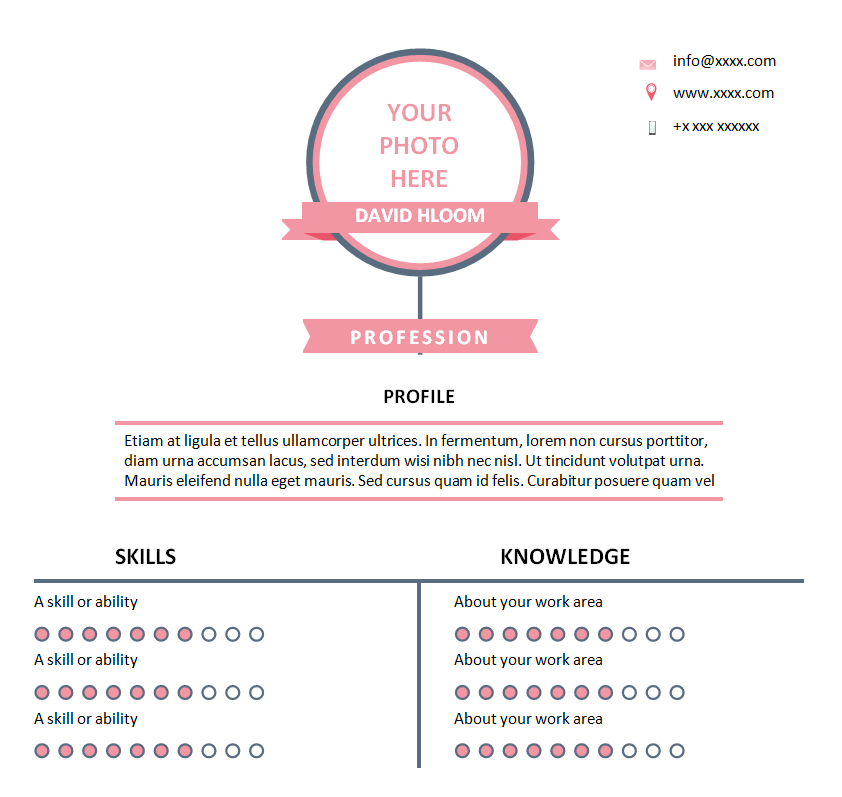
Each template below opens in Microsoft Word, so you can change the text, colors, and icons without design software. Click the button next to any preview to download the ZIP file, unzip it, and open the .docx file to start editing.
Free Editable Infographic Resume Template

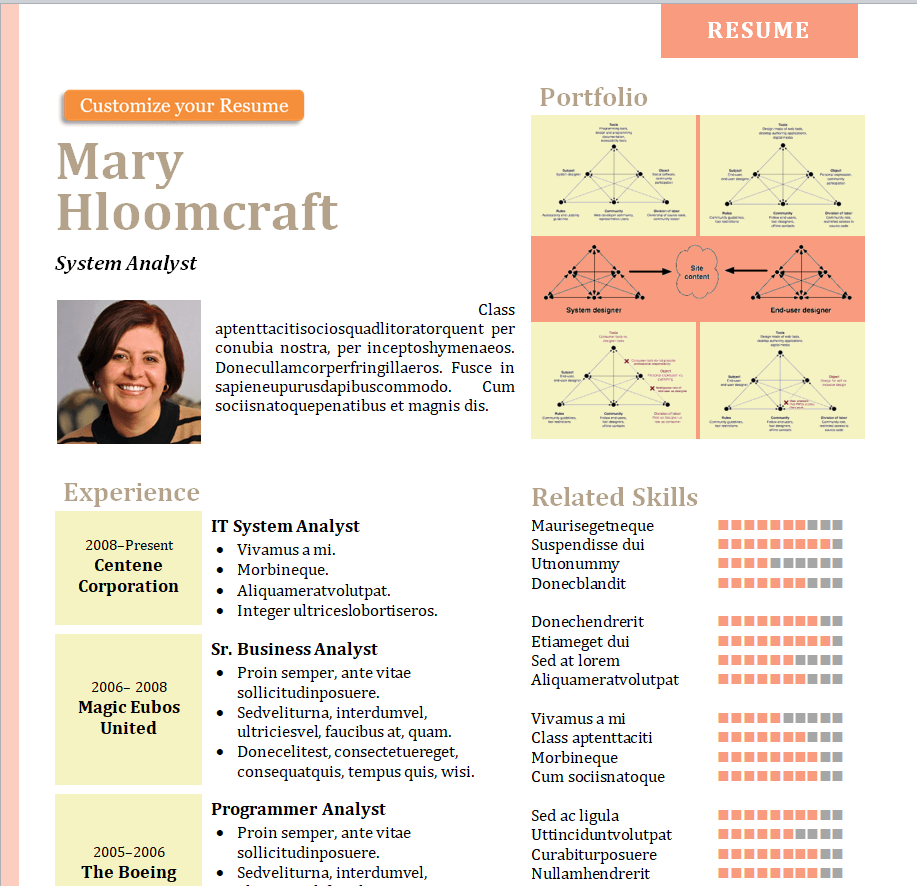
Infographic Resume Template for a Graphic and Web Designer

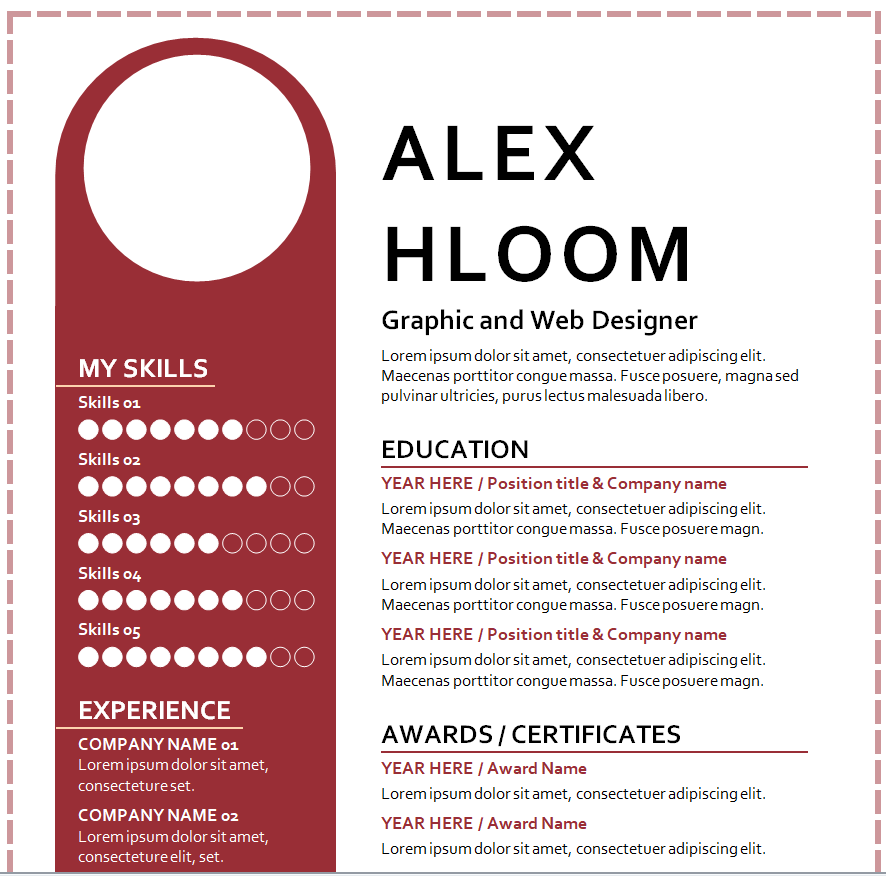
UI/UX Web Designer Infographic Resume Word Template

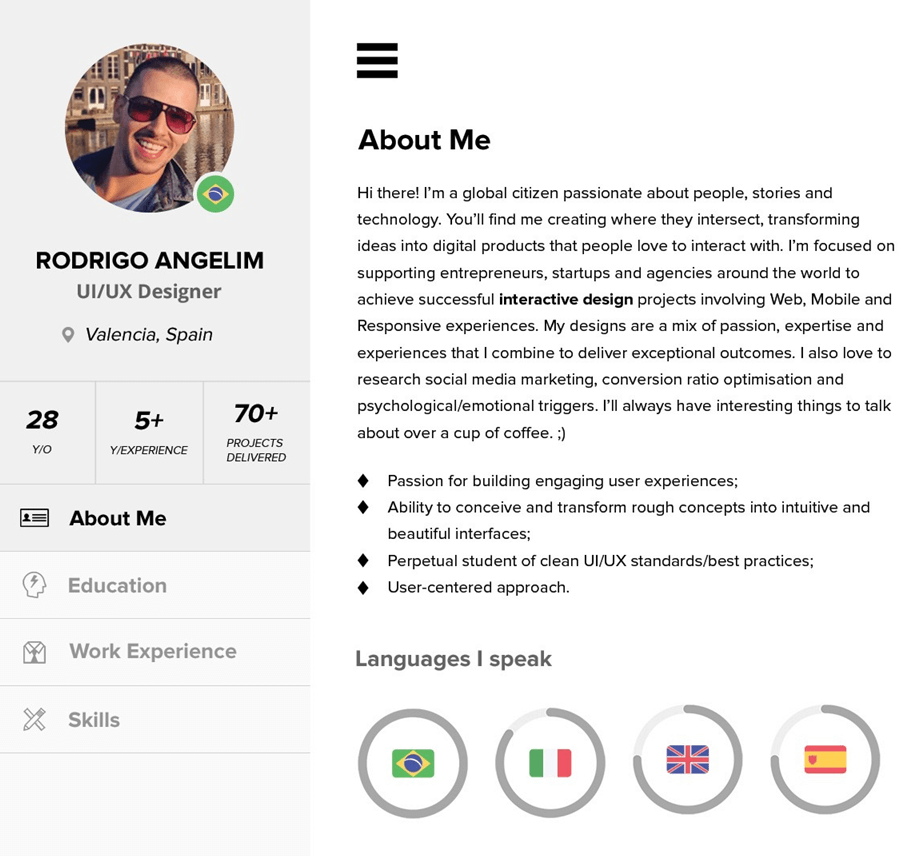
Admin Support Professional Infographic Resume Template (MS Word)

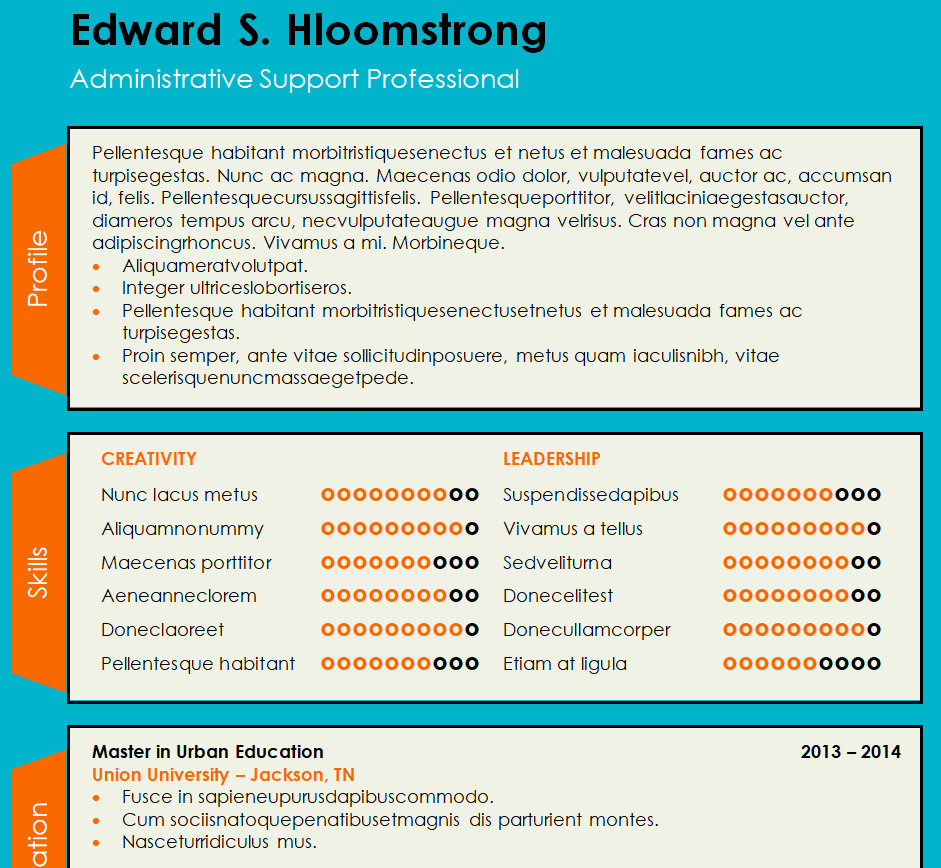
Professional Infographic Resume Sample (Doc)

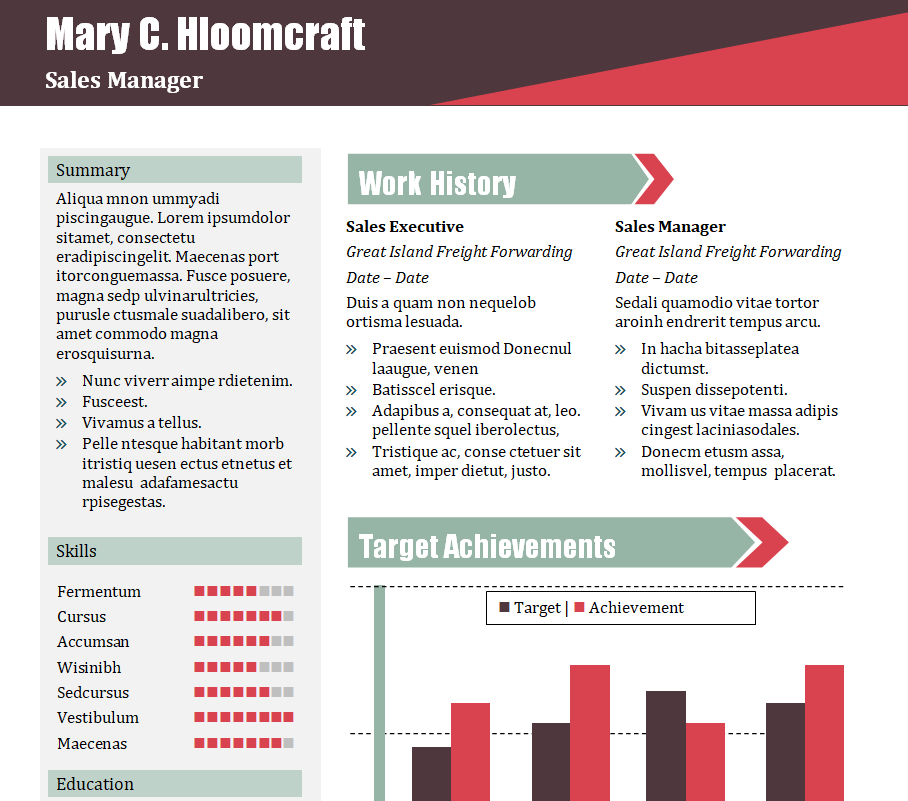
Formal Sales Manager’s Infographic Resume Template

How to Customize Your Template Without Breaking the Layout
Infographic templates are built from text boxes, shapes, and grouped objects, so editing them is a bit different from typing in a normal Word document. Follow these steps and you’ll avoid the usual frustrations.
- Save a copy first. Keep the original file untouched so you can always go back if something shifts out of place.
- Turn on the Selection Pane. In Word, go to Home > Select > Selection Pane. It lists every shape and text box, which makes it much easier to click the right element.
- Replace text in place. Click inside each existing text box and type over the sample content rather than deleting the box and drawing a new one. That way fonts and spacing stay consistent.
- Adjust skill bars honestly. Resize the filled portion of each bar to reflect your real level. Many recruiters prefer labels like “Advanced” or “Working knowledge” over percentages, so consider adding them.
- Swap the photo carefully. Right-click the placeholder image and choose Change Picture to keep its size and crop. In some countries, including the US, résumé photos are uncommon, so delete the photo frame if it isn’t expected where you’re applying.
- Pick one accent color. Change the theme color under Design > Colors so every shape updates at once instead of recoloring items one by one.
- Check fonts. If a template uses a font you don’t have, Word substitutes another one and lines can wrap differently. Either install a similar free font or switch to a standard one and tidy up the spacing.
- Export to PDF. Use File > Save As > PDF before sending. A PDF keeps your layout identical on any device, while a .docx can shift on someone else’s computer.
Writing Content That Matches the Design
A beautiful layout can’t rescue weak content. Because infographic résumés have less room for text, every line has to work harder. Here are a few writing habits that make the visuals more convincing.
Lead with a one-line value statement
Replace a generic objective like “Seeking a challenging position” with a specific line such as “Web designer who builds fast, accessible sites for small businesses.” It tells the reader exactly what you offer in a few seconds.
Turn duties into results
Under each role in your timeline, use one or two short achievements instead of a list of responsibilities. “Redesigned the company newsletter, which the team now uses as its standard layout” is stronger than “Responsible for newsletter design.” Only include results you can explain and back up in an interview.
Let numbers do the visual work
Infographics love numbers. Years of experience, projects delivered, team size, or client count can sit in large type with a small label underneath. Just make sure every figure is accurate, because interviewers often ask about them.
Common Mistakes That Make Infographic Resumes Backfire
- Too many colors and icons. Two or three colors and a consistent icon style look professional; a rainbow of clip art does not.
- Rating yourself 100% in everything. Full bars across the board look unrealistic. Showing a range feels more honest and believable.
- Tiny text. If you have to shrink the font below about 9 points to make everything fit, cut content instead.
- Missing contact details. Your email and phone number should be easy to find, not buried in a decorative corner.
- Going beyond two pages. One page is ideal for most infographic résumés; two is the realistic maximum.
- Forgetting to proofread. Typos inside text boxes are easy to miss because spell-check sometimes skips them. Read every box out loud before you send it.
Other Career Documents You Might Need
A strong résumé is only one part of a job search. If you’re filling out applications that ask for personal details in a structured format, our biodata form templates can help you organize that information. Once interviews start turning into offers, it helps to know what a standard offer letter format looks like so you can review terms with confidence, and an appointment letter template shows the kind of confirmation many employers send after you accept.
Employers and HR teams may also find our certificate of employment samples useful when former staff request proof of their work history for a new application. And if you like the visual style of infographics, the fact sheet templates use a similar approach to present company or project information on a single page.
Frequently Asked Questions
Are infographic resumes acceptable to employers?
Many employers are happy to receive them, especially in creative, marketing, and tech fields. In conservative industries or for large companies that use applicant tracking software, a plain text résumé is usually the safer choice, so it pays to have both versions ready.
Will an applicant tracking system read my infographic resume?
Not always. Text inside shapes, charts, and multi-column layouts may not be parsed correctly. If you’re applying through an online portal, submit a simple text-based résumé and keep the infographic version for direct emails and interviews.
Can I edit these templates online or on a Mac?
The files are designed for Microsoft Word, which runs on both Windows and Mac. Google Docs can open them, but complex shapes and text boxes may shift, so check the layout carefully or edit in Word for the best results.
Should I include a photo on my resume?
It depends on where you’re applying. In the US, UK, and Canada, photos are generally left off to avoid potential bias, while in some other countries they are common. Remove the photo frame from the template if it isn’t customary in your target job market.
What file format should I send?
Send a PDF unless the employer asks for a Word file. A PDF preserves your fonts, colors, and layout exactly as you designed them, no matter what device the hiring manager uses.

